
Don't Starve Together gives you a server list and nothing else in its menus. There is no box anywhere for typing an address, so you either find the server by name in the list, or you open the hidden developer console and connect to the IP by hand.
The list works for most groups. The console is the fallback for when the list lets you down.
Before anyone can join
The server is running. A new server downloads its game files on the first boot, so give it a few minutes. The Console tab shows when it is done.
The cluster token is valid. The server authenticates with Klei through a cluster token. Without a working one the server never shows up in the list, even though it keeps running and the panel reports it as online. The console gives it away by repeating Account Failed (6).
Your players know the exact name, and the password if there is one.
Where the address is
Open your server in the control panel. The Overview tab shows the address as an IP and a port, with a copy button next to it.
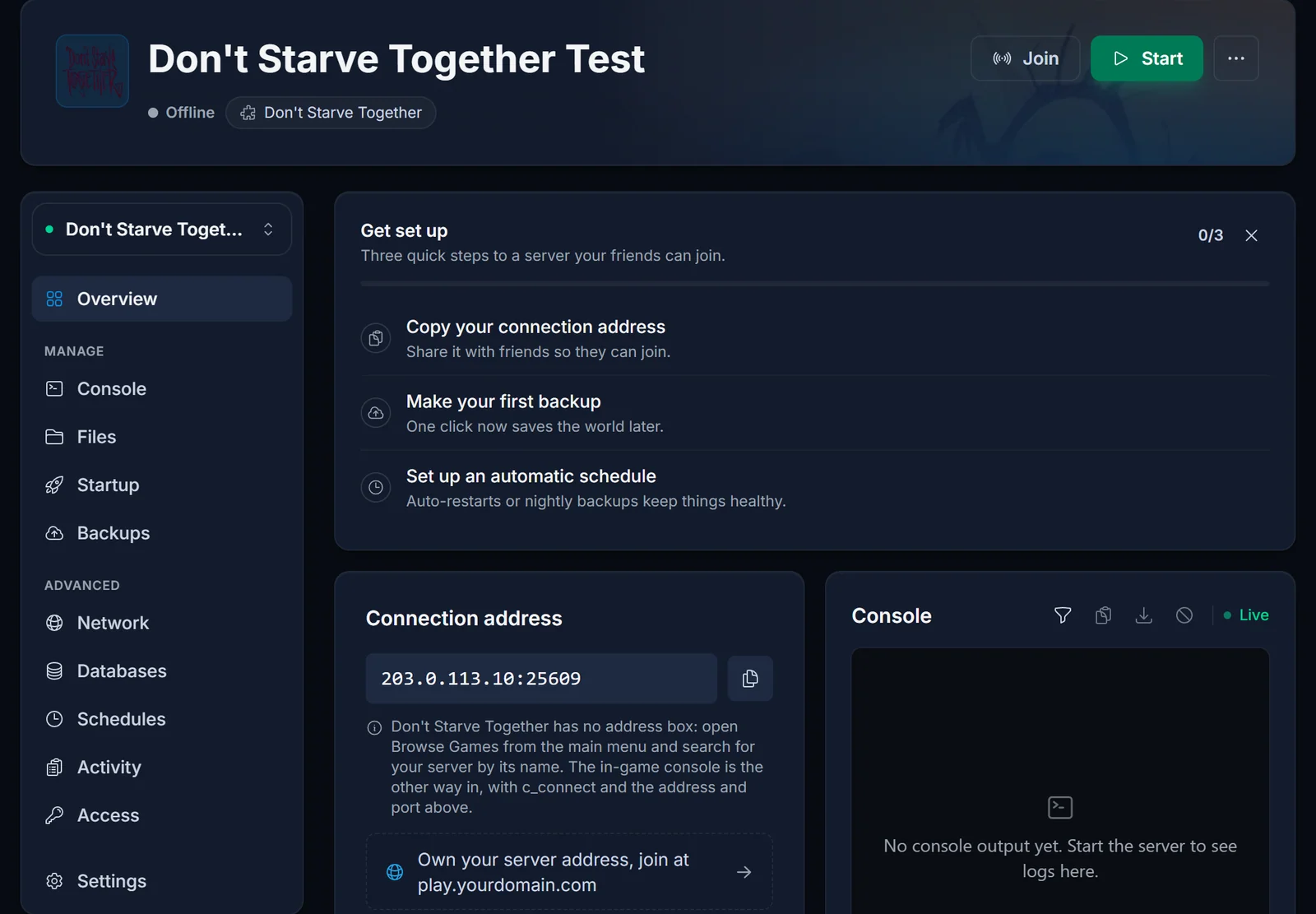
You only need the address for the console method. Keep the IP and the port apart: the console command takes them as two separate values, and the port is the one shown here, not one you assume.
Joining from the server list
- Start the game, click Play and then Browse Games
- Type the server name into the search field
- Select the server and click Join
- Enter the password if asked, then pick a character
Search matches on the text of the name and ignores upper and lower case. If the server still has a generic default name, it drowns among every other server with the same name, so give it something unique in the Startup tab and restart before you send it to anyone.
Joining with the console
Use this when the server is up but refuses to appear in the list, which happens most often with brand new servers and on networks that filter traffic.
Turn the console on. It is disabled in the game client by default:
- Open Options from the main menu, then Settings
- Switch Enable Console on
- Return to the main menu
Connect. Open the console with the key to the left of 1 (tilde on a US layout) and type the command with your own IP and port:
c_connect("203.0.113.10", 10999)
The IP goes in quotes, the port does not. For a password protected server, add the password as a third value in quotes:
c_connect("203.0.113.10", 10999, "yourpassword")
Press Enter and the game takes you to character selection.
The caves
The caves have no separate join step. Step into a sinkhole on the surface and the server moves you to the caves shard by itself after a short load. If that move fails, you end up at character selection, and the cause sits on the server, not in your game.
Troubleshooting
Friends cannot find the server, but you can. They are searching for a slightly different name. Send them the exact spelling.
Nobody can find it, even by its exact name. The cluster token. Look for Account Failed (6) in the Console tab, and replace the token if you see it.
Nothing happens when you press Enter on c_connect. The console is still switched off, or you typed into the chat instead of the console. Enable it in Settings and open it from the main menu.
The connection fails. Compare the port with the Overview tab. Copying the IP and guessing the port is the classic mistake.
A sinkhole sends you back to character selection. The caves shard did not accept you. Restart the server and read the console output.
A changed name or password did nothing. Startup values are read at boot. Restart the server.
Frequently asked questions
Is there a direct connect option in the menus?
No. The developer console with c_connect is the only way to join by IP.
Do we need to join the caves on their own? No. A sinkhole moves you there automatically.
Where does the password go in the console command? As a third value in quotes, after the port.
Why does the server look online in the panel but not in the list? A running process is not the same as a registered one. Without a valid cluster token the server never shows up in the list.
Token checked and the server still hidden? Contact support with your server name and we will look from our side. No server yet? See our Don't Starve Together server hosting plans.
