
A RuneScape: Dragonwilds dedicated server has three doors. PC players can search for its exact name in the Public tab, connect straight to its address, or use the invite code the server creates when it starts. Players on PlayStation 5, Xbox Series X|S and Nintendo Switch 2 use the invite code. All of them end up in the same world, so a mixed group can play together.
Before anyone can join
The server is running. The invite code only exists while the server is up. On a stopped server the panel says "Start the server to generate an invite code." instead of showing one.
You have the current code. The server creates a new invite code every time it starts. A code from before the last restart no longer works.
There is room. A dedicated Dragonwilds world holds six players at once.
Where the details are
Open your server in the control panel and stay on the Overview tab. The Connection address card shows the address with a copy button, a short note on which platform joins which way, and underneath it the Invite code block with the current code and its own copy button. The Join button in the server header opens the same card from any tab.
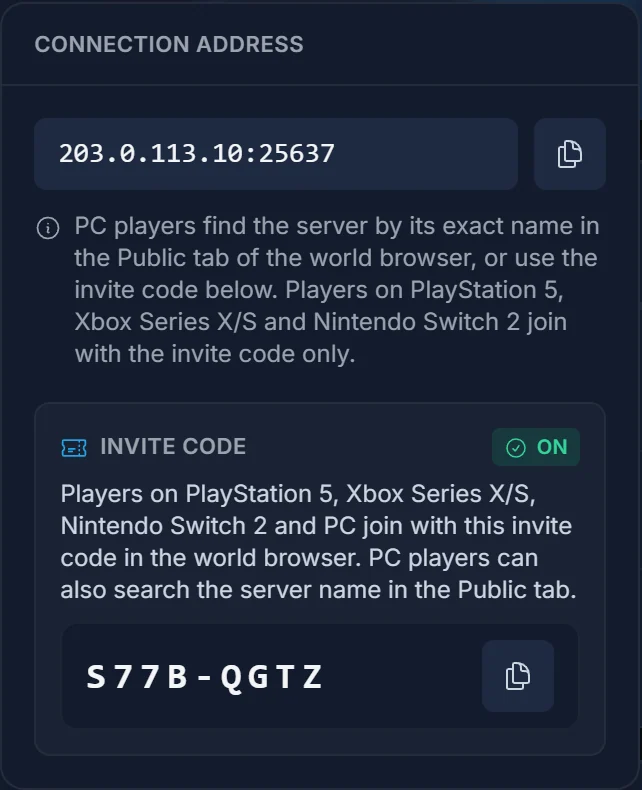
A code is eight letters and digits split by a hyphen, for example S77B-QGTZ. The badge in the corner of the block shows whether crossplay is on for the current session.
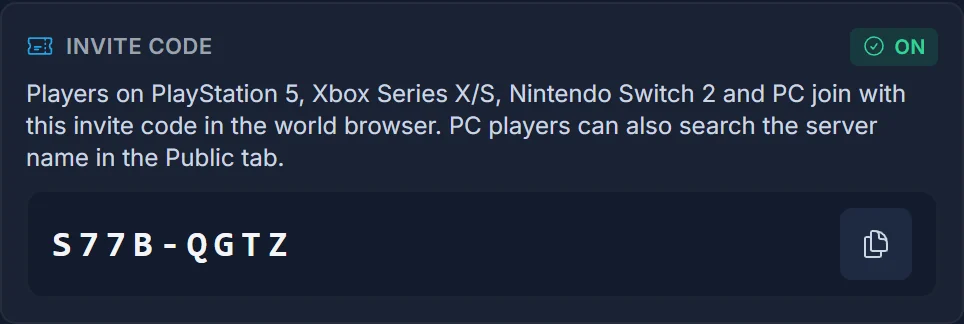
If the block reads "Waiting for the invite code", the server is still starting. The code shows up by itself once the session is registered, no page reload needed. While you are in the world, the game also shows the current code in its pause menu, which is handy for passing it on without opening the panel.
Joining from PC
With the invite code. Start the game, open the Worlds screen from Play, choose the option to join with a code and enter it exactly as the panel shows it.
By name in the Public tab. On the Worlds screen, switch to Public and search for the server name. The search is case sensitive, so Dragon Keep and dragon keep are two different searches. Get the exact spelling from the owner. A short, distinctive name is much easier to find among all the other public worlds.
By address. On the Worlds screen, open the Direct tab and enter the IP and port from the Connection address card. This route does not depend on the public list at all, so it is the one to try when the server is slow to appear there.
Joining from PS5, Xbox and Switch 2
Since the 1.0 release, console players can join dedicated servers, and the invite code is their way in.
- Get the current code from the server owner, or from a friend who is already in the world
- Start RuneScape: Dragonwilds and open the world browser from the main menu
- Choose to join with a code
- Enter the eight characters including the hyphen and confirm
- Enter the world password if the game asks for it
Menu labels can change with a game patch, so treat the wording above as a guide. The route stays the same: world browser, code, confirm.
The code mixes letters and digits, and console keyboards make slips easy. If a code is refused, check 0 against O and 1 against I before anything else.
Crossplay is on by default on Dragonwilds 1.0 servers. If the badge on the Invite code block ever shows OFF, console players cannot reach that session.
Passwords
Further down the Overview tab are two password fields.
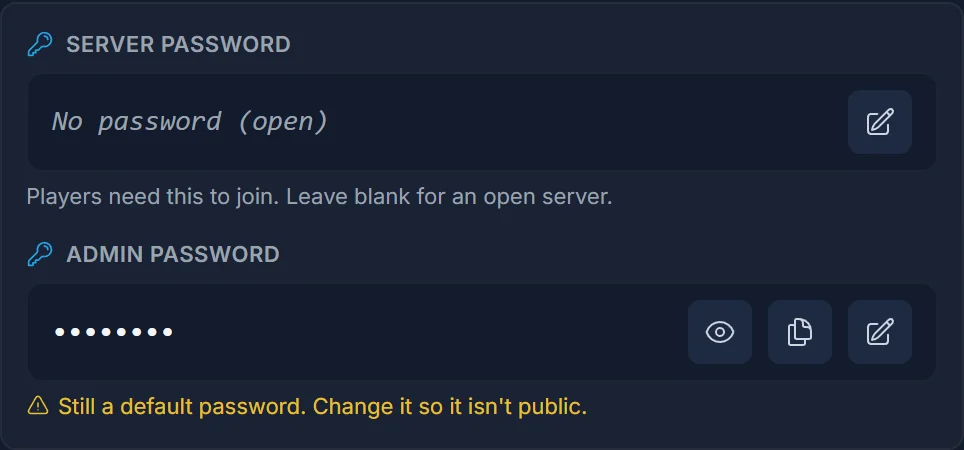
- Server password. Every player is asked for it after picking your world, whichever route they used, console included. Leave it blank for an open world.
- Admin password. A separate value for administering the server, not for joining. Do not hand it out, and change it if the panel warns that it is still the default.
A changed password is picked up when the server starts, so restart after editing it.
Troubleshooting
The invite code is rejected. The server has restarted since you copied it. Reload the Overview tab and share the code it shows now. If it is current, look for a mistyped character.
The server is not in the Public tab. Check the spelling and capital letters, then confirm in the panel that the server is running. Right after a restart the list can take a minute to catch up. The invite code and the Direct tab work in the meantime.
A direct connection times out. The port is missing. Copy the whole address from the card, not just the IP.
The password is wrong. Players need the Server password, not the Admin password. If you changed it, make sure the server has restarted since.
The world is full. Six players is the limit for a dedicated world. Someone has to leave before the next person can join.
The code block keeps waiting. Give a fresh start a minute. If the code never appears, open the Console tab and look for errors during startup.
Frequently asked questions
Can I pick a permanent invite code? No. The server creates a new one on every start, so share the current code after each restart.
What should console players use? The invite code. It is the route the game is built around on console, and it saves typing an address on a controller.
Do PC and console players end up in the same world? Yes. Whether they came in by name, address or code, everyone joins the same world.
How many players fit? Six at once on a dedicated server.
Server running, code fresh and still no way in? Contact support with your server name and what the game says, and we will check from our side. No server yet? See our RuneScape: Dragonwilds server hosting plans.
