
There are two reliable ways onto a The Forest dedicated server: the in-game dedicated browser, and Steam's server favourites. The favourites route finds servers the in-game browser sometimes misses, so it is worth knowing both.
The in-game browser
- Launch The Forest and click Multiplayer
- Choose Join, then the Dedicated tab
- Search the server name, or scroll the list. Clearing filters helps on a busy day
- Select the server and join. If it has a password, the game asks now
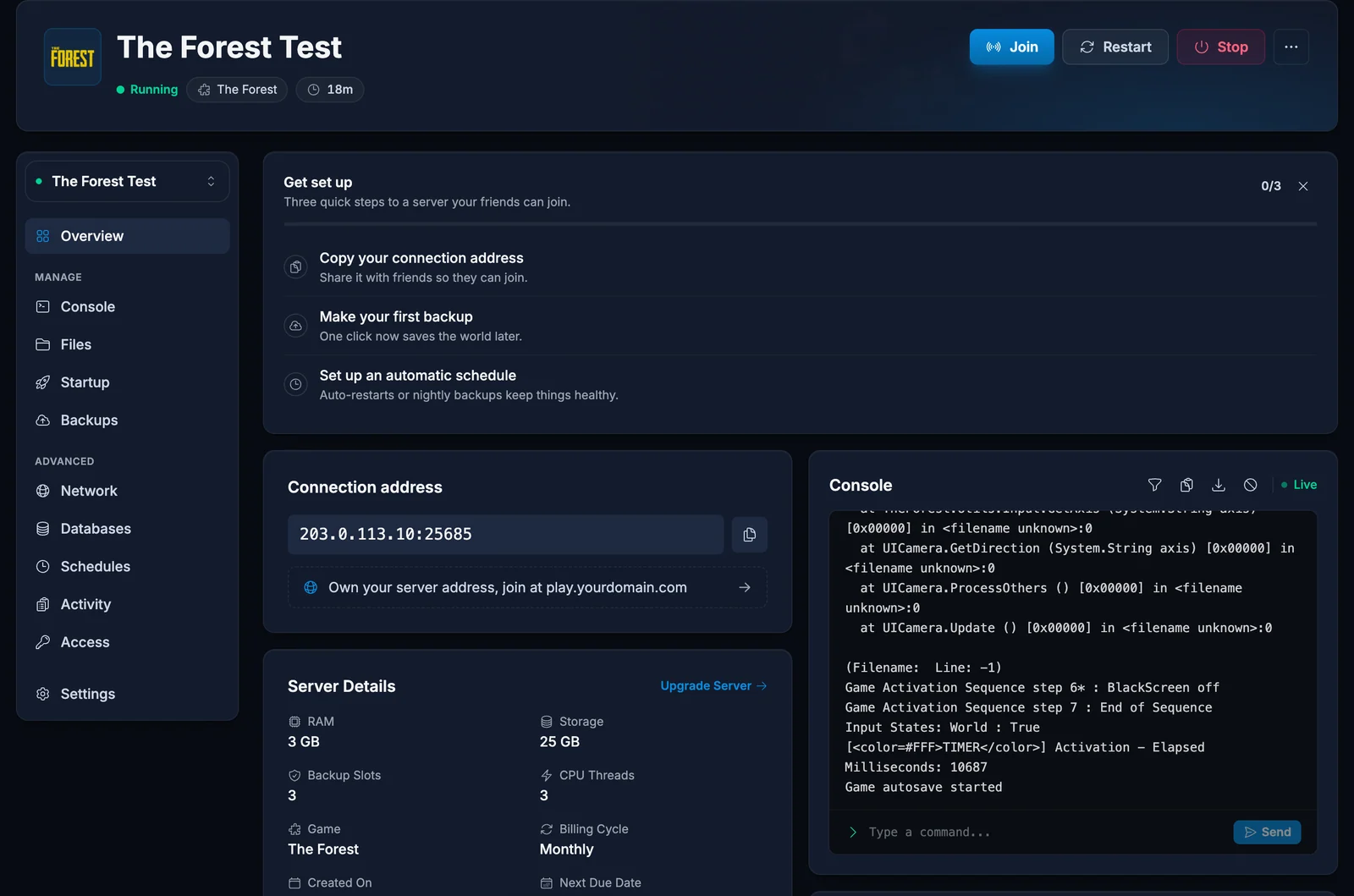
As the owner, the address and name are on the Overview tab of your control panel.
Steam server favourites
The Steam list is faster than the in-game browser and keeps your regular servers one click away.
- In Steam, open View, then Game Servers
- On the Favorites tab, click the plus icon
- Enter the address as
IP:portusing the query port, not the game port - Add it, then select the server and press Connect while The Forest is running
That port distinction is the thing to get right. The Forest answers Steam's server queries on the query port, so the game port produces silence and looks like an offline server. Owners can read both ports from the Network tab in the panel.
Keeping your character between sessions
This surprises people who expect a dedicated server to remember them automatically. On a server with a Steam game server token configured, your position and inventory are restored from your last visit. Without the token, everyone starts fresh each session.
If your group keeps respawning as new characters, that token is why, and it is a server-side setting rather than anything the players are doing wrong.
Troubleshooting
The server is missing from the dedicated list. The in-game browser is slow to index new servers. Search the exact name with every filter cleared, or use the Steam favourites method, which queries the address directly and finds it immediately.
Wrong password. The join password is the server password, not the admin password. Ask the owner which one they set.
Version mismatch. One side has not updated. Restart Steam to pull the latest patch, and owners can update the server from the panel with one click.
You spawn as a new character every time. The server has no Steam game server token configured. That is the fix, not anything in your own settings.
A connection timeout. The server may be restarting or mid-save. Give it a minute and retry. If it never answers, the owner should check the server state in the panel.
Frequently asked questions
Do my friends need an account with you? No. They need the game and either the server name to search for or the address.
Which port do I share? For joining in game, the address as the panel shows it. For Steam favourites, the query port. They are different numbers and that catches people out.
Why can my friend see the server and I cannot? Filters in the in-game browser, most likely. Clear them and search the exact name, or add it through Steam instead.
Does the world keep running when I log off? Yes. A dedicated server runs independently of any player, which is the point of renting one.
Still not seeing the server after trying Steam favourites? Contact support with your server name and we will check it from our side. No server yet? See our The Forest server hosting plans.
