
Astroneer will not connect to a dedicated server until you change one setting on your own computer. Every player has to do it, once per machine, and it is the reason almost every failed Astroneer connection fails.
Turn off client encryption
Astroneer refuses to talk to any dedicated server while client encryption is on, and the setting exists only in a file on your PC. There is no in-game toggle for it.
Press Win + R, paste this and press Enter:
%LocalAppData%\Astro\Saved\Config\WindowsNoEditor
Open Engine.ini in Notepad and add these two lines at the end:
[SystemSettings]
net.AllowEncryption=False
Save, then restart Astroneer. If Engine.ini is empty or missing, create it and paste the two lines in.
You do this once per computer, but every player who wants to join has to do it on theirs. The matching option is already set on the server side for you, so this half is all that is left.
Copy your address
Open your server in the control panel and copy the connection address. It looks like IP:PORT.
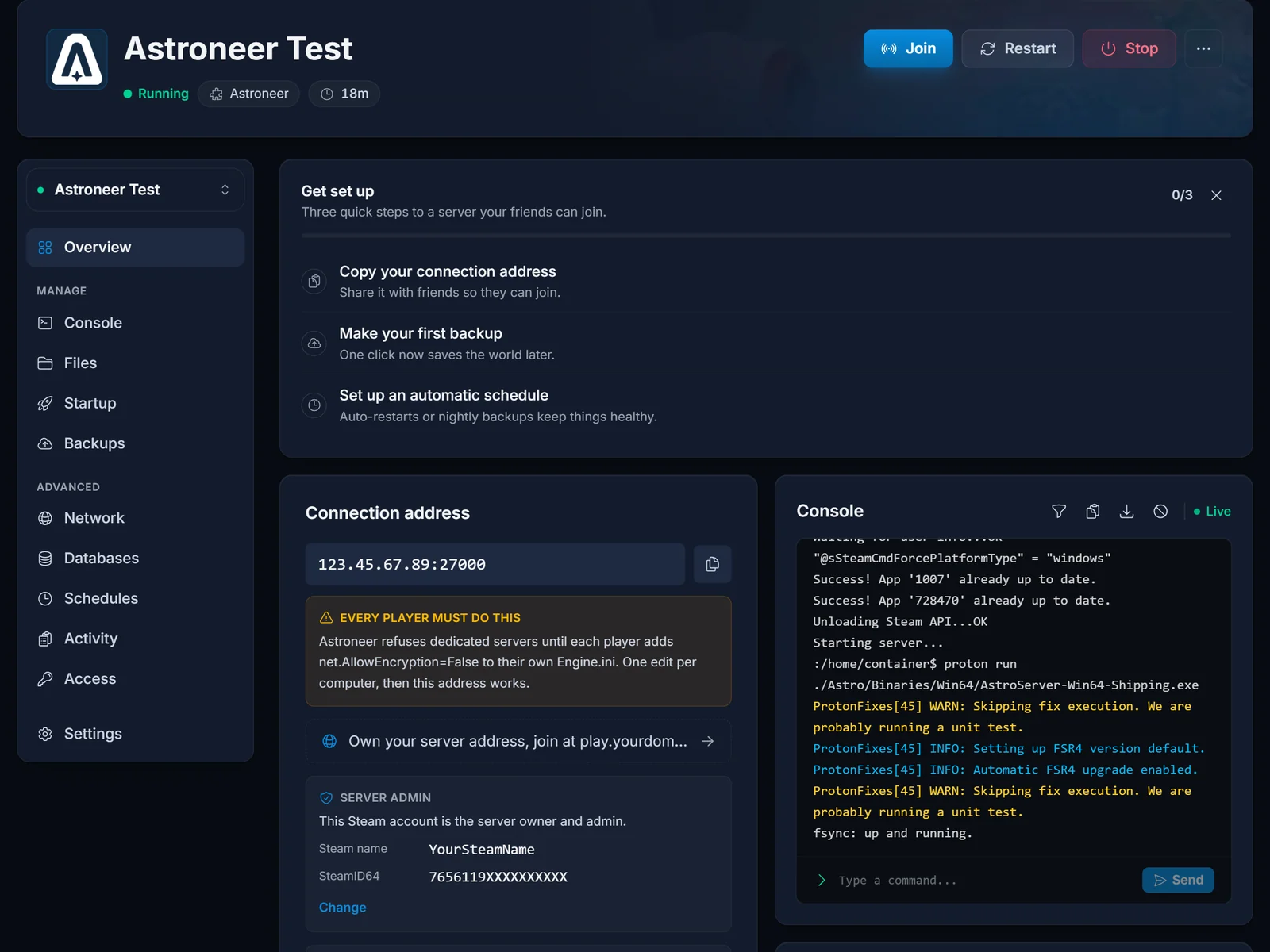
Your port is assigned when the server is created, so do not assume Astroneer's default of 27000. Use the exact address the panel shows.
Add the server in game
Astroneer has moved this menu around across updates, so yours may not match another guide word for word. The flow is the same either way.
- Launch Astroneer and stay on the main menu
- Open the server list, which is either a tab on the main menu or the dedicated-server option inside CO-OP, depending on your version
- Choose the option to add a dedicated server
- Paste your
IP:PORTinto the server address field. If there is a nickname field, put anything you like - Enter the join password if the owner set one
- Confirm, then pick your server from the list and join
Then open the CO-OP tab and start the game from there. This is the step people miss. Adding and joining only connects your client, it does not drop you into the world, so staying on the main menu looks like nothing happened.
Who is the admin
Astroneer grants admin by Steam account, not by password. The owner sets their Steam name and SteamID64 on the server's Overview page, and that account becomes the administrator. Everyone else joins as a normal player.
A typo in either field silently leaves the server with no admin at all, which is worth double-checking rather than discovering later.
Troubleshooting
The server is not in the list after adding it. Check the address character by character, especially the port, and confirm the panel shows the server running.
You connect and are dropped immediately. Almost always the encryption setting. Reopen Engine.ini, confirm both lines are there under a [SystemSettings] heading, that you saved, and that you fully restarted the game rather than just returning to the menu.
Server is full. Astroneer dedicated servers cap at 8 players. That is the game's limit, not the plan's, and it cannot be raised.
Version mismatch. Your client and the server are on different builds. Let the server finish its automatic update, then restart it from the panel.
You joined but you are not admin. The Steam name and SteamID64 on the server must match the account you are playing on.
Frequently asked questions
Do all my friends really have to edit a file? Yes. It is one file, two lines, once per computer. There is no way to set it from inside the game and no way for the server to do it for them.
Do I need to redo it after a game update? Not normally, but an update that resets your config would. If joining suddenly breaks for everyone at once, check the file again first.
Why 8 players? That is Astroneer's own cap on dedicated servers. No host can raise it.
Do I need to keep the game open for others to play? No. The server runs on its own, which is the point of renting one.
Still dropped on connect with both lines in place? Contact support with your server name and we will check the server side. No server yet? See our Astroneer server hosting plans.
