
Killing Floor 2 gives your group three routes onto a dedicated server: the in-game browser, a one-line console command, and Steam's own server list. All three start from the server address, so that comes first.
Find your server address
Whoever owns the server can read the address in the game panel. Open the server and look at the connection card on the Overview page. It shows the IP and game port joined by a colon, such as 198.51.100.42:7777, and a copy button saves you from typos.
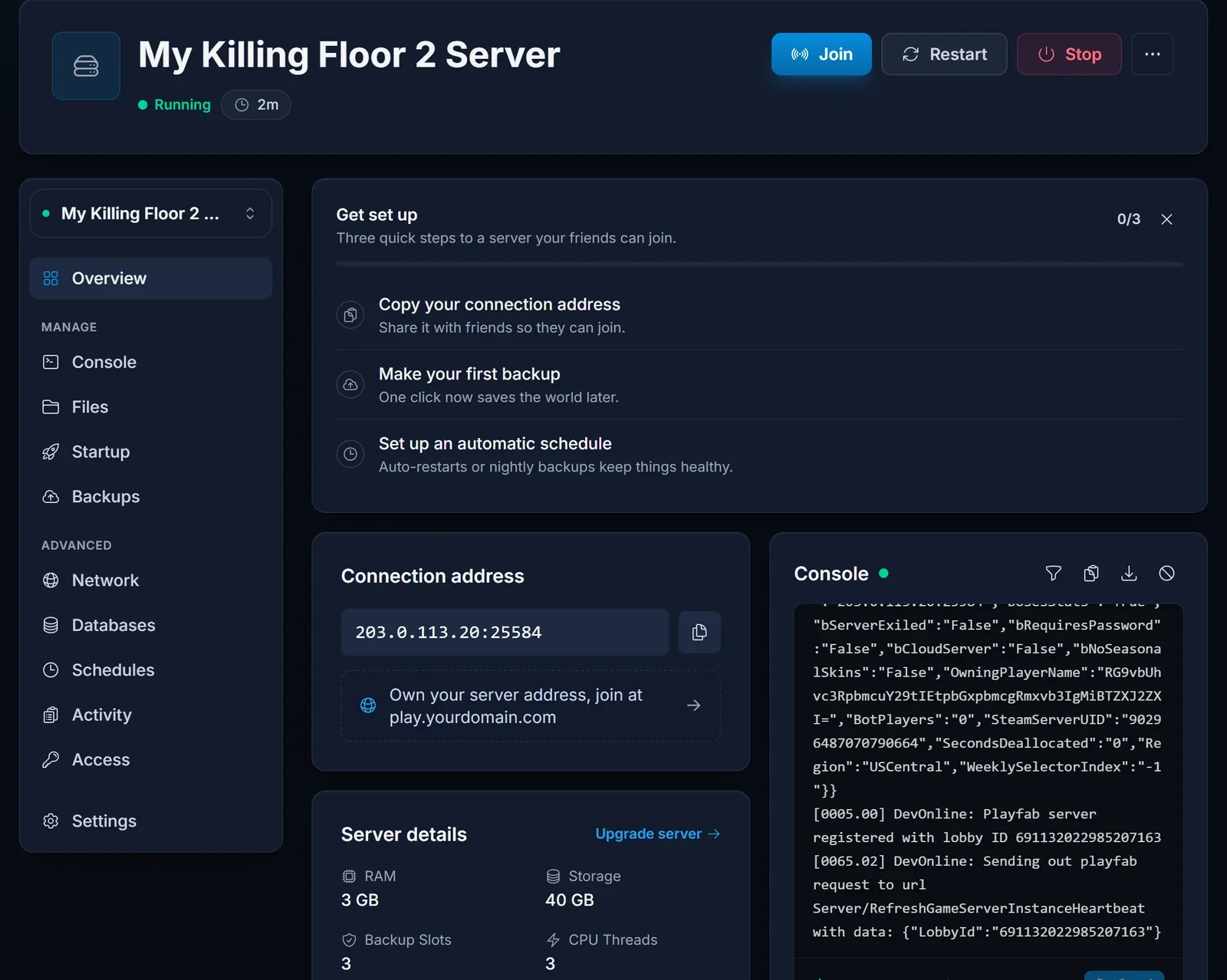
Two things to confirm before sharing it:
- The server status reads Running. A stopped or still booting server will not accept anyone.
- You are passing on the game port from the card. The server also has a separate query port, which is only for Steam's server list (more on that below).
Route 1: the in-game server browser
Good for public servers with a name people can search for.
- Start Killing Floor 2 and go into the multiplayer menu.
- Open the server browser.
- Type part of the server name into the search, or narrow the list down by the map the server is running.
- Pick the server and connect. If it is locked, the game prompts you for the password.
A distinctive name helps. The owner sets it under Server Name on the Startup tab.
Route 2: the console command
The quickest way in, and it skips the browser completely, so it is the fallback whenever a server refuses to appear in the list.
- From the main menu, press the
`key (on most layouts it sits just left of the 1 key) to bring up the console. - Enter
openand then the address you copied, and press Enter.
open 198.51.100.42:7777
Password protected server? Attach the password to the address with ?password=:
open 198.51.100.42:7777?password=hunter2
Route 3: Steam favorites
Handy for a regular group, since the entry stays in Steam between sessions. Steam talks to the server on its query port, not the game port. The owner finds it as Query Port on the Startup tab (the default is 27015).
- In Steam, open View, then Game Servers, and switch to Favorites.
- Click the add button and enter the server IP with the query port, for example
198.51.100.42:27015. - Connect from that list whenever you want to play.
Room for six
Survival in Killing Floor 2 is designed around a squad of six, and that is how many players the server holds at once. A seventh friend has to wait for a free slot.
When you cannot get in
Is the server even up? Check the panel. A brand new server spends a long time on its first start downloading game files, and it only shows up for players once that finishes.
It times out or says the connection failed. Compare the port you used with the one on the connection card. Using the query port or the web admin port here is a frequent slip. Networks that block outgoing UDP, such as some school or office connections, can also stop you.
The password is rejected. Password changes only take effect after a restart, so the owner should confirm the value on the Startup tab under Server Password and restart if they just edited it.
You get a version error. The server pulls the latest build from Steam each time it starts. Restart it, then make sure your own copy of the game has finished updating in Steam.
Still stuck? Reach us on live chat or open a ticket from support.
Related reading
If you run the server yourself, the Killing Floor 2 getting started guide covers difficulty, wave count, passwords and the web admin. Plans are on the Killing Floor 2 server hosting page.
