
Team Fortress 2 connects straight to an address, so everything comes down to one string: the server's IP and port written together as IP:PORT. Paste that into the game's favourites list or a console command and you are in. The public server browser is optional and only works once the server is listed.
Before anyone can join
The server is running. A stopped server answers nothing, and the loading screen will simply time out.
You have the full address, port included. Servers on a shared node do not all use 27015. An IP without its port points at the wrong server or at nothing.
Your players have the password, if you set one.
Where the address lives
Open your server in the control panel. The Overview tab has a connection card with the address and a copy button, plus the current state and how many players are on.
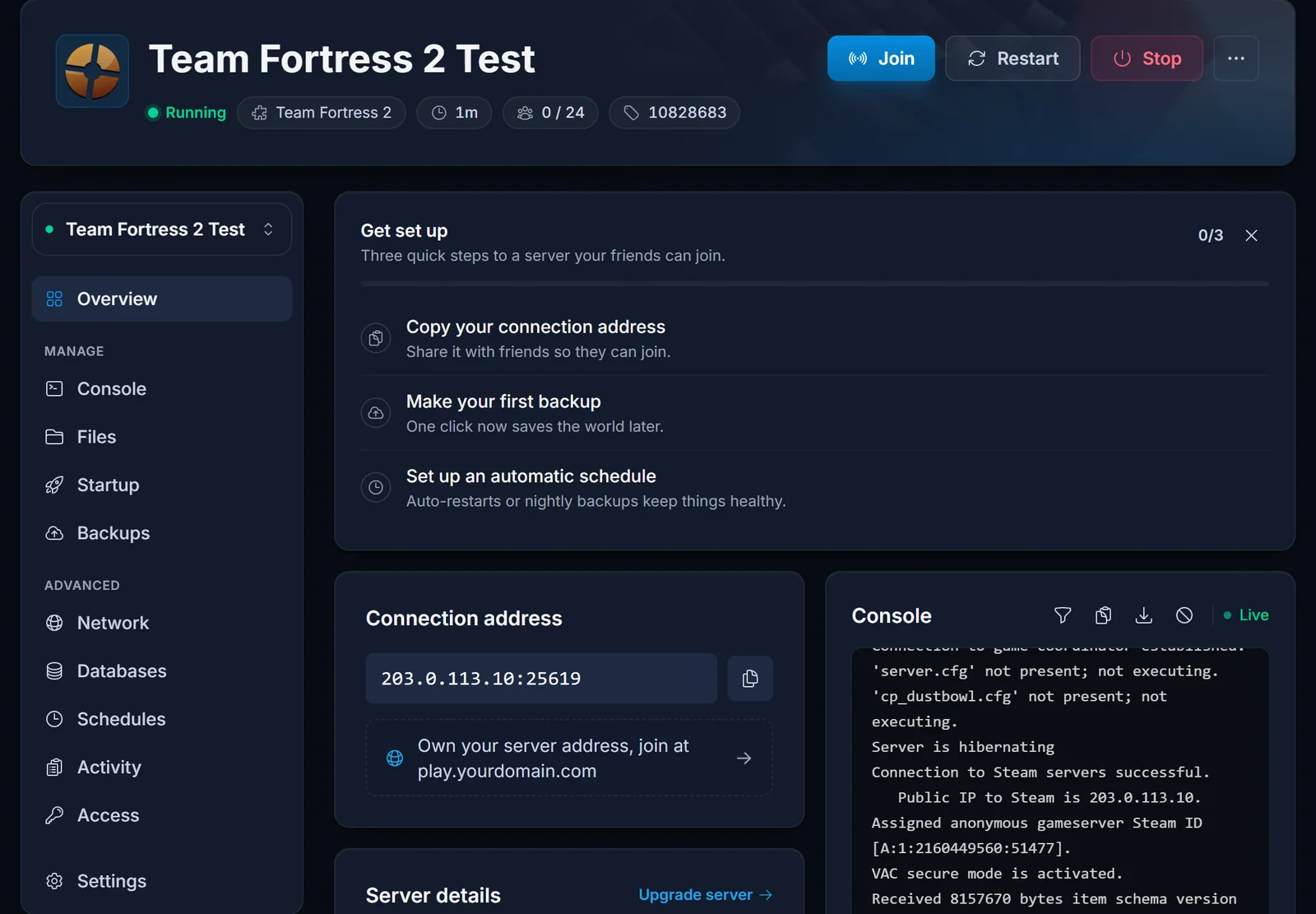
Check that card before you send the address around. If the server is not running, nobody can connect no matter which method they use.
Option 1: save it as a favourite
Best for a group that plays together often, since the server stays in your list from then on.
- Start Team Fortress 2 and choose Find a Game
- Go to Community Servers and switch to the Favorites tab
- Click Add a Server
- Paste the complete
IP:PORTand confirm - Double click the server once it shows its name and map
The game asks a favourite for its details directly, so it works even while the server is missing from the public list.
Option 2: type it in the console
The quickest route when the address is already on your clipboard.
- Under Options, then Advanced, turn on Enable Developer Console. This is a one-time setting
- In game, press the key below Escape (usually
`) to open the console - Enter the command and press Enter:
connect 203.0.113.10:27015
For a passworded server, add the password in the same line:
connect 203.0.113.10:27015; password yourpassword
When a connection fails, the console prints the actual reason. The loading screen usually does not.
Option 3: search the server browser
The Internet tab under Community Servers only lists servers that run with a Steam Game Server Login Token. Without one the server still works, it just stays out of the public list.
- Find a Game, then Community Servers, then Internet
- Type part of the server name in the filter at the bottom
- Double click to join
To get listed, create a token for App ID 440 on Steam's game server account page and paste it into the token field on the Startup tab, then restart the server.
From the Steam client
You do not have to start in the game. In Steam, open View and then Game Servers, add the address under Favorites and connect from there. The list is shared with the in-game favourites.
If a friend is already playing on the server, right click them in your friends list and choose Join Game.
Troubleshooting
The connection times out. Either the port is missing or wrong, or the server is stopped. Compare the address with the Overview card and check the state there.
It is not in the Internet tab. No login token, or the server has not been restarted since you added one. Favourites and connect work in the meantime.
Nothing happens when you press the console key. The developer console is still off. Turn it on under Options, Advanced.
You are asked for a password. The owner set one with sv_password. Only they can give it to you.
You get a version mismatch. Valve shipped an update and the server is still on the old build. The owner has to update the server before anyone can join again.
Custom maps load slowly. The map is downloading from the game server itself. It finishes eventually, faster only if the owner sets up a separate download host.
Frequently asked questions
Do I need the port if the IP is right? Yes. Several servers can share one IP, and the port decides which one you reach.
Can players join without the server being in the browser?
Yes. Favourites, the connect command and Steam's own server list all work with just the address.
Why does the server only show for some people? Usually it is not listed at all and the people who see it added it as a favourite. Add a login token to put it in the public list.
Still cannot connect with the right address and the server running? Contact support with your server name and we will look from our side. No server yet? See our Team Fortress 2 server hosting plans.
