
Made your own texture pack and want every player to get it when they join? Minecraft Java can push a resource pack from the server, so nobody has to install anything by hand. A pack you made yourself will not show up in the panel's Resource packs tab, but you can still set it up in about ten minutes.
What you need before you start
- Your Minecraft Java server in the game panel
- Your finished resource pack as a
.zipfile - Somewhere to upload the zip so it has a public download link (see below)
This guide is for Minecraft Java Edition. Bedrock handles packs in a different way.
The short version
- Zip the pack so
pack.mcmetais at the top level of the zip - Upload the zip somewhere that gives a direct download link
- Get the zip's SHA-1 fingerprint
- Put the link and fingerprint in
server.propertiesand setrequire-resource-pack=true - Restart the server
The rest of this guide walks through each step, plus what to do when something goes wrong.
Why your pack is not in the Resource packs tab
The Resource packs tab searches Modrinth and CurseForge and sets up the pack you pick with one click. Packs you made yourself are not on those sites, so the search cannot find them.
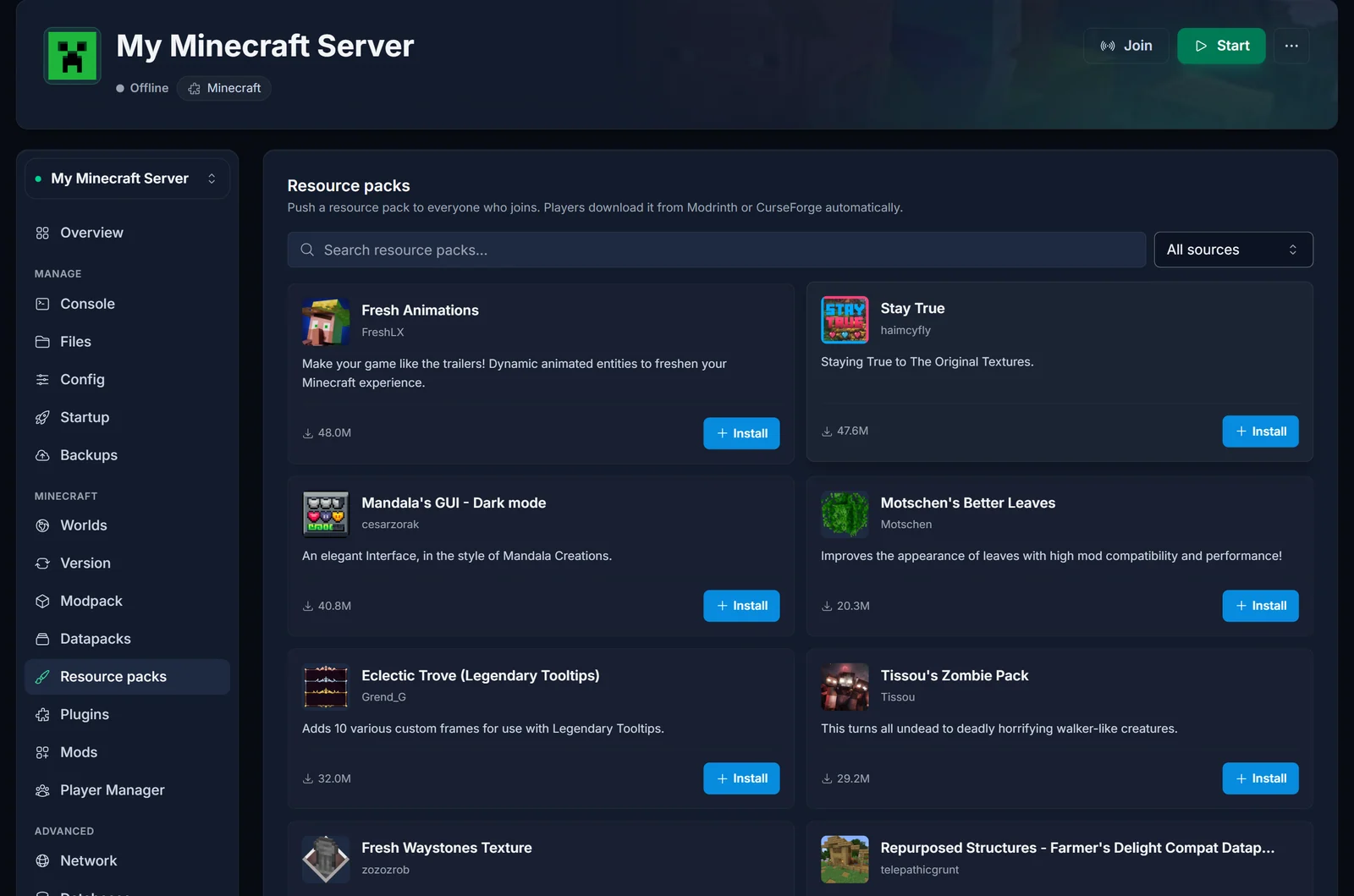
Behind the scenes, the tab only fills in a few lines in server.properties. You can fill in the same lines yourself with a link to your own pack, which is what the steps below do.
How it works
Your server never sends the pack itself. Instead, server.properties holds a link to the zip. When a player joins, the server hands that link to the player's game, and the game downloads the pack straight from it. That is why the zip has to live somewhere on the internet with a direct download link, and not on the game server.
You set three lines in server.properties:
| Setting | What it does |
|---|---|
resource-pack |
The direct download link to your zip |
resource-pack-sha1 |
A fingerprint of the zip, so the game can check it and cache it |
require-resource-pack |
true means players must accept the pack to play |
Step 1: Check the zip
Most problems start here. Open the zip and look at the top level. You should see pack.mcmeta right away, next to the assets folder (and pack.png if you have an icon):
MyPack.zip
├── pack.mcmeta
├── pack.png
└── assets/
If you open the zip and only see a single folder with your pack inside it, Minecraft will not load it. Go into that folder, select everything inside, and zip those files instead of the folder.
A quick test: put the zip in your own .minecraft/resourcepacks folder and turn it on in the game. If it works there, it will work from the server.
Keep the file size reasonable. Every player downloads the whole pack the first time they join, so a smaller pack means faster joins. Current Minecraft versions refuse packs larger than 250 MB.
Step 2: Upload the zip and get a direct link
The link must start the download at once. If opening it in your browser shows a web page with a download button, Minecraft cannot use it.
Some options that work:
- mc-packs.net: a free site made for exactly this. Upload the zip and it gives you both the download link and the SHA-1 fingerprint, so you can skip step 3.
- Dropbox: share the file and copy the link. At the end of the link, change
dl=0todl=1. - GitHub: create a release in a repository and attach the zip. The link to the attached file is a direct download.
- Your own website: any web host that serves the file over
https.
Avoid Google Drive, which puts a warning page in front of larger files, and Discord, whose file links expire after a while.
Test the link by pasting it into a private browser window. If the zip starts downloading, you are good.
Step 3: Get the SHA-1 fingerprint
The SHA-1 is a 40-character code that identifies your exact zip file. It is optional, but set it: without it, the game cannot tell whether it already has the pack and downloads it again on every join.
On your computer, open a terminal in the folder with the zip and run:
Windows (Command Prompt or PowerShell):
certutil -hashfile MyPack.zip SHA1
Mac:
shasum MyPack.zip
Linux:
sha1sum MyPack.zip
Copy the long code of letters and numbers it prints. On Windows, it is the line in the middle.
Get the fingerprint from the exact same file you uploaded. If you change the zip, even a tiny bit, the code changes too.
Step 4: Add it to server.properties
- Open the game panel and select your Minecraft server
- Go to the Files tab
- Open
server.propertiesin the root folder - Find the lines below and fill them in. They are already in the file, usually empty
- Save the file
resource-pack=https://example.com/MyPack.zip
resource-pack-sha1=0123456789abcdef0123456789abcdef01234567
require-resource-pack=true
Use your own link and your own fingerprint, of course. Do not put spaces or quote marks around them.
If you want players to be able to skip the pack, set require-resource-pack=false. They then get a choice when they join.
After the server has started once, you may see the link written as https\://... with a backslash. That is normal. Minecraft adds it when it saves the file, and it still works.
Step 5: Restart and turn on "require" in the panel
Restart the server from the power controls. Minecraft only reads these settings when it starts.
Now open the Resource packs tab. Your pack shows up at the top as Active resource pack, with the file name from your link. From here you can:
- Turn Require players to accept the pack on or off, instead of editing the file
- Click Remove to stop pushing the pack
Both changes take effect after the next restart.
Join the server yourself to test. You should get a prompt to download the pack, and your textures load once it finishes.
Updating the pack later
When you change your pack:
- Upload the new zip (replacing the old file, or as a new file with a new link)
- Make a new SHA-1 fingerprint from the new zip
- Update
resource-pack-sha1inserver.properties, andresource-packtoo if the link changed - Restart the server
Do not skip the new fingerprint. If the fingerprint does not match the file behind the link, players get a download error, and if the pack is required, they cannot join.
What players see
With the pack required, players get a prompt when they join. If they accept, the pack downloads and loads automatically. If they decline, they are disconnected. They can try again by rejoining.
If a player once chose to decline server packs for your server, the game may remember that. They can fix it on the Multiplayer screen: select your server, click Edit, and set Server Resource Packs to Enabled or Prompt.
Troubleshooting
Players get no prompt at all. The server has not been restarted since you edited the file, or the resource-pack line is empty or misspelled. Check the file and restart.
"Failed to download resource pack". The link is not a direct download, or it has stopped working. Paste it into a private browser window to check. With Dropbox, make sure it ends in dl=1.
The download fails even though the link works. The SHA-1 does not match the file. This happens if you updated the zip but kept the old fingerprint. Make a new fingerprint from the file you uploaded and paste it in.
The pack downloads but nothing changes. The zip has an extra folder at the top level, so Minecraft cannot find pack.mcmeta. Rezip it as described in step 1.
Players are told the pack was made for a different version. The pack_format number in pack.mcmeta does not match your server's Minecraft version. The pack may still work, but update the number to match your version to be sure.
Players still see the old version of the pack. The fingerprint was not updated, so their game uses the copy it already has. Update resource-pack-sha1 and restart.
Frequently asked questions
Can I upload the zip to the server's files and link to that? No. The game server does not share its files on the web, so players' games cannot download from it. The zip has to be on a site with a public link.
Can the server push more than one pack?
Not through server.properties, which takes one link. Merge your packs into a single zip instead.
Can I change the text in the prompt?
Yes. Add a resource-pack-prompt line to server.properties with a short message in Minecraft's text format, for example resource-pack-prompt={"text":"This server uses custom textures"}, then restart.
Does it work with mods and plugins? Yes. Resource packs are handled by the player's game, so it works the same on Vanilla, Paper, Fabric, Forge and the rest.
Stuck on a step? Open a ticket from the support page with your server name and the link to your pack, and we will take a look. New to us? See our Minecraft server hosting plans.
