
You can convert a Minecraft Bedrock world to Java Edition with Chunker, a free world converter made by Hive Games. You take the world off your Bedrock server or your PC or phone, convert it on your computer, then upload the Java version to a Java server. Your builds, terrain and chests come along. Mobs, villagers and player inventories do not, so read what carries over before you start.
What carries over and what does not
Chunker converts the world itself: blocks, biomes, the Nether and the End, chest and container contents, signs and in-game maps. A few things are lost on the way to Java:
- Entities. Animals, mobs, villagers, armor stands and minecarts are not converted. Paintings and item frames are the exception and do come across.
- Player inventories. Every player starts the Java world with an empty inventory, so empty important items into chests before you convert.
- Structure data. The buildings of villages and strongholds stay, but the game's record of where those structures are is not carried over.
- Add-ons and behavior packs. These are Bedrock only and have no Java equivalent.
If losing those is a dealbreaker, keep playing the world on Bedrock. Moving to Java does not have to lock out your Bedrock friends: with Geyser on the Java server, Bedrock players can still join.
Step 1: Get your Bedrock world
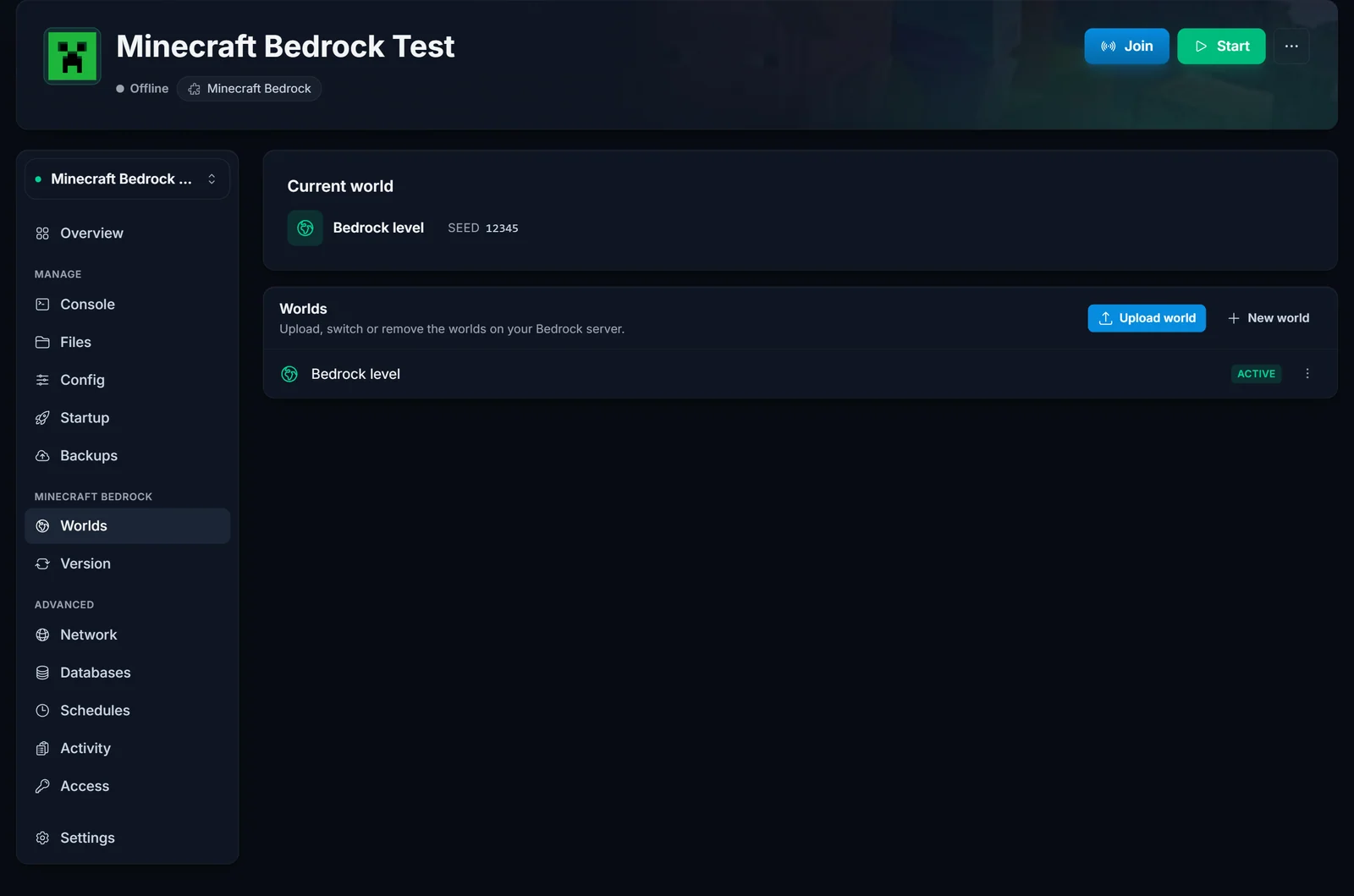
From a Bedrock server. Stop the server first so the world is fully saved. Open the Worlds tab, click the menu (⋮) next to your world and choose Download. You get a .zip of the world folder. Prefer FTP? Download the whole folder under worlds/ instead, it holds a db folder and level.dat.
From your own device. On PC or phone, open the world list in Minecraft, edit the world and use Export World to save a .mcworld file. On Windows you can also copy the world folder straight from the game's minecraftWorlds folder. Consoles cannot export world files.
Step 2: Convert the world with Chunker
- Download Chunker from chunker.app and install it. It runs on Windows, macOS and Linux, and the conversion happens on your own computer.
- Open Chunker and pick your world: Select archive for the
.zipor.mcworldfile, or Choose world folder if you have the folder.
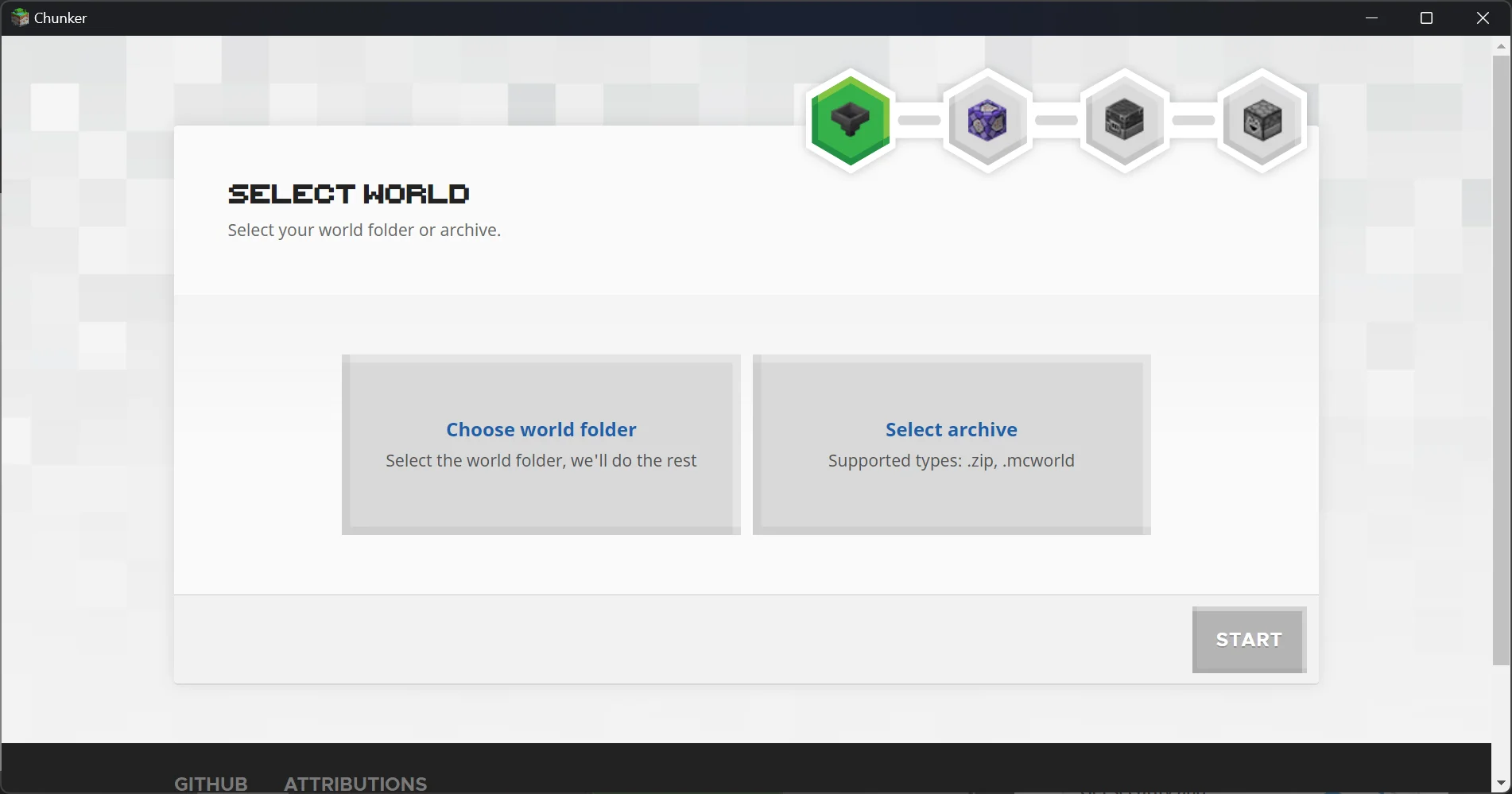
- Click Start. Chunker reads the world, which takes a moment on a big one.
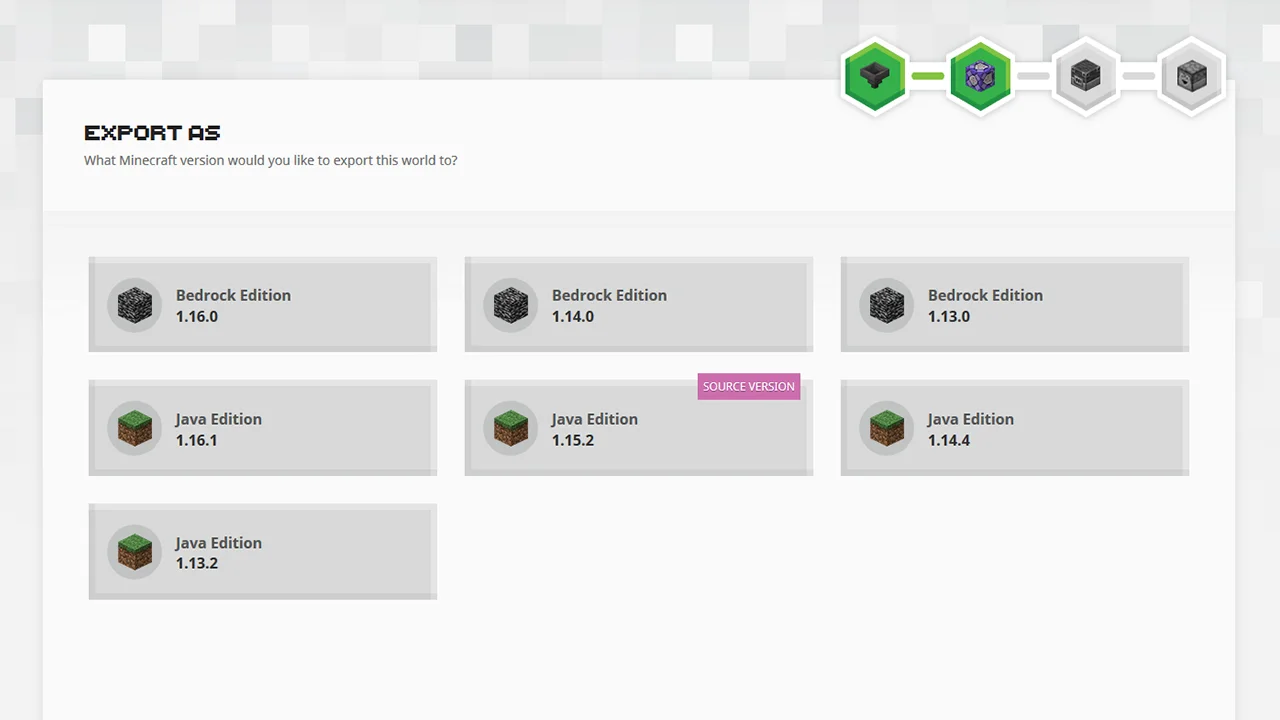
- Under Export as, pick a Java Edition version. Choose the version your Java server runs. If that exact version is not in the list, take the newest Java version it offers: Java opens worlds from older versions and upgrades them, never the other way round.
- Convert and save the result. Unpack it if it comes as a zip. You want a Java world folder with
level.dat, aregionfolder and theDIM-1(Nether) andDIM1(End) folders inside.
Step 3: Upload the converted world to your Java server
- Back up the world your Java server has now, see backing up your Minecraft world. Then stop the server.
- Zip the converted world folder on your PC, upload the zip in the Files tab next to
server.propertiesand decompress it. Big worlds go faster over FTP. - Set
level-nameinserver.propertiesto the folder's name, exactly as written:
level-name=MyConvertedWorld
- Start the server and join. You should spawn in your converted world.
The full upload walkthrough, with FTP and common mistakes, is in how to upload your own world to your Minecraft server.
Running Paper or Spigot? Those servers keep the Nether and the End in their own folders (world_nether, world_the_end). The first time they load a converted world they move its Nether and End there by themselves, but only if those folders do not already exist. If you are replacing an older world, delete its old Nether and End folders (after your backup) so the converted ones are used.
Common issues
- The server generates a brand-new world.
level-namedoes not match the folder name, orlevel.datsits one folder too deep (MyWorld/MyWorld/level.dat). Move the inner folder up. - The Nether or End is the old one or empty. On Paper or Spigot, the old
world_netherorworld_the_endfolder is still there. Delete it with the server stopped and start again. - Some blocks look wrong. A few Bedrock blocks have no exact Java match and get the closest one. Check your important builds after the first join.
- Players arrive with nothing. Inventories do not convert. Store items in chests before converting next time.
Going the other way
Chunker also converts Java worlds to Bedrock. Pick a Bedrock Edition version under Export as, then follow how to upload a world to your Minecraft Bedrock server.
Need a Java server for the converted world? See Minecraft server hosting, and the control panel overview shows where the Files tab and Worlds tab are.
