
A HumanitZ server works fine straight out of the box, but the defaults are a middle-of-the-road world that suits nobody in particular. Most groups want something more specific: a relaxed co-op run with plenty of loot, or a hardcore server where every death costs you the character. This guide goes through the first hour with a new server in the order you will actually need things, from the first boot to the settings worth changing and how to keep your world safe.
The first boot
Open your server in the game panel and click Start. On the very first run the server downloads the HumanitZ dedicated server files through Steam, which takes a few minutes. Later starts are much quicker, although the server still checks for updates every time it boots.
Keep the Console tab open while it starts. When the log reaches Session created!, the world is loaded and players can connect.
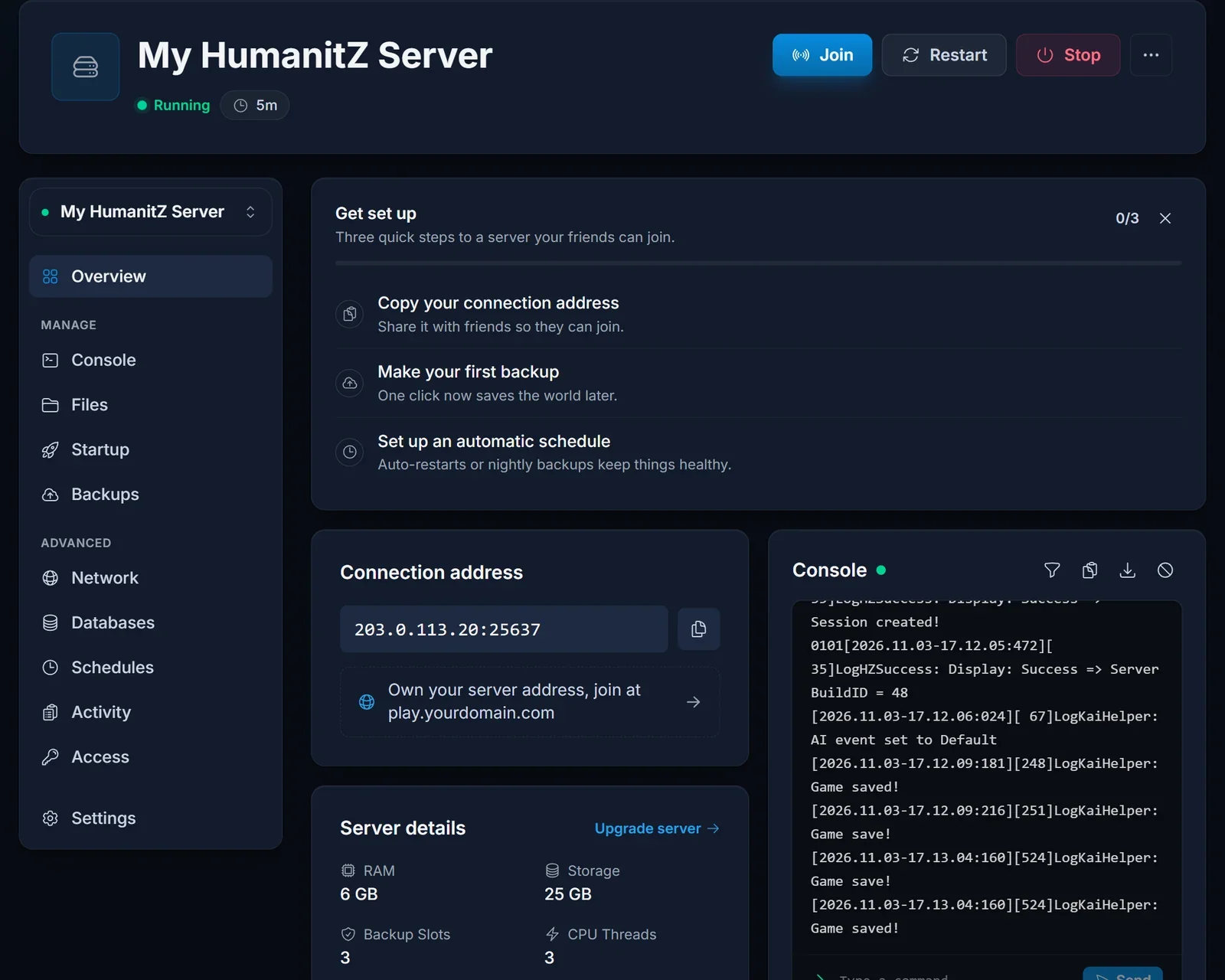
The Overview page shows your server address on the connection card. Copy it and pass it to your group along with our guide to joining a HumanitZ server.
How settings reach the game
Almost everything you will want to change lives on the Startup tab, and there are a lot of options there. It helps to know how they work before you start clicking:
- You change a value on the Startup tab.
- You restart the server.
- During boot, the panel writes your values into
HumanitZServer/GameServerSettings.ini. - The game reads that file and applies it.
So nothing changes on a running server. Make all your edits, then restart once.
Identity and access
The top of the Startup tab controls who can find the server and get in.
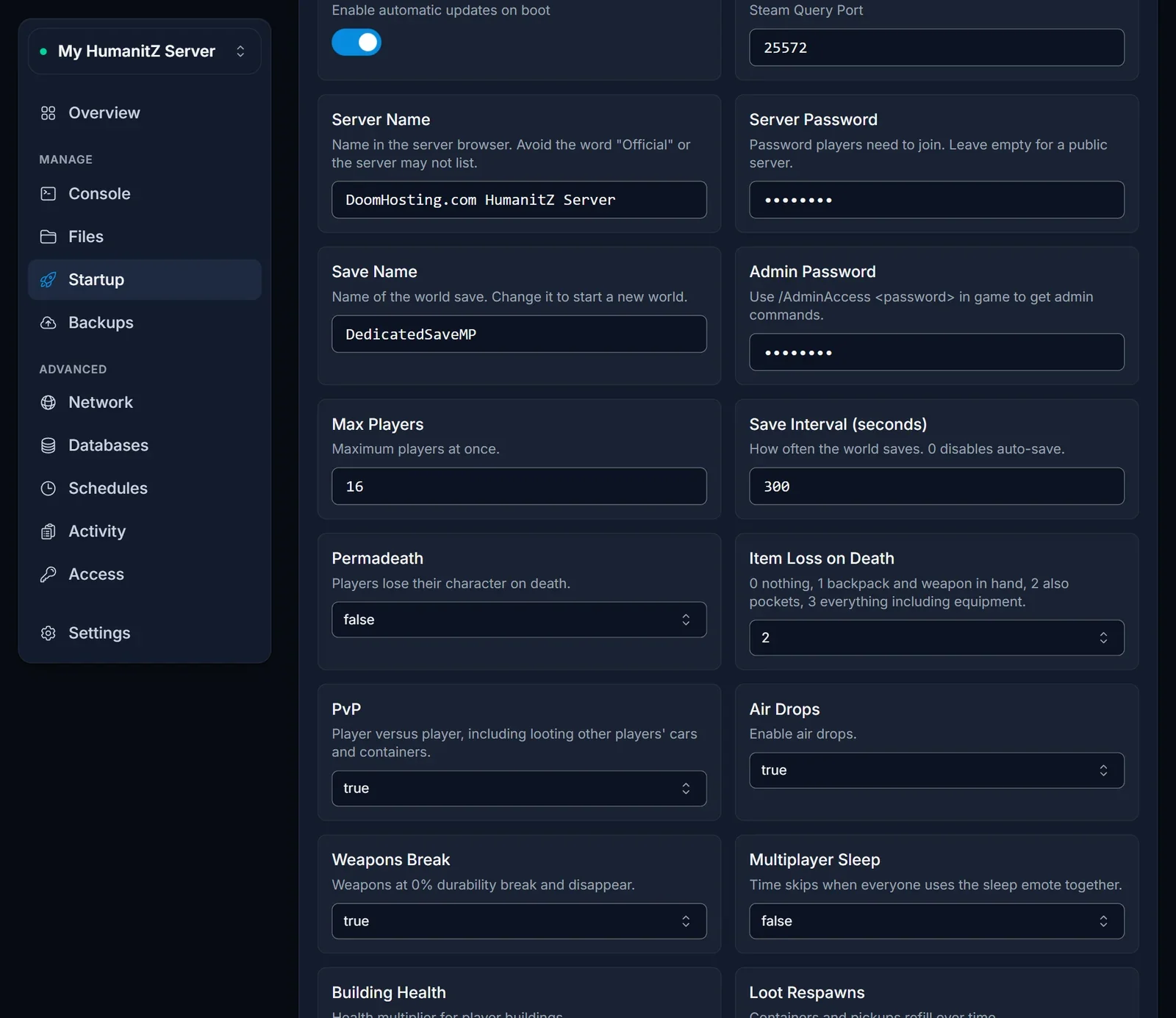
- Server Name is what appears in the multiplayer list, up to 64 characters. Pick something people can search for. Leave out the word "Official", which the game reserves and which can keep your server off the list or stop it from starting.
- Server Password is optional. Leave it blank for an open server, or fill it in to make players enter it before joining.
- Admin Password gives you admin rights in game. Join the server, open chat and type
/AdminAccessfollowed by your password. - Max Players is the number of people allowed on at once, from 1 to 64.
- Search ID should stay at
HumanitZ_Dedicatedif you want to be listed publicly. Change it to anything else and the server drops out of the normal list, which is handy for a friends-only world. People can still connect with the address. - Reserved Slots holds slots for players listed in
F_ReservedSlots.txt. Setting it equal to Max Players effectively makes the server whitelist only.
Shaping the world
Further down the tab you will find the gameplay settings. You do not need to touch all of them. These are the ones that change the feel of a server the most.
Death and risk
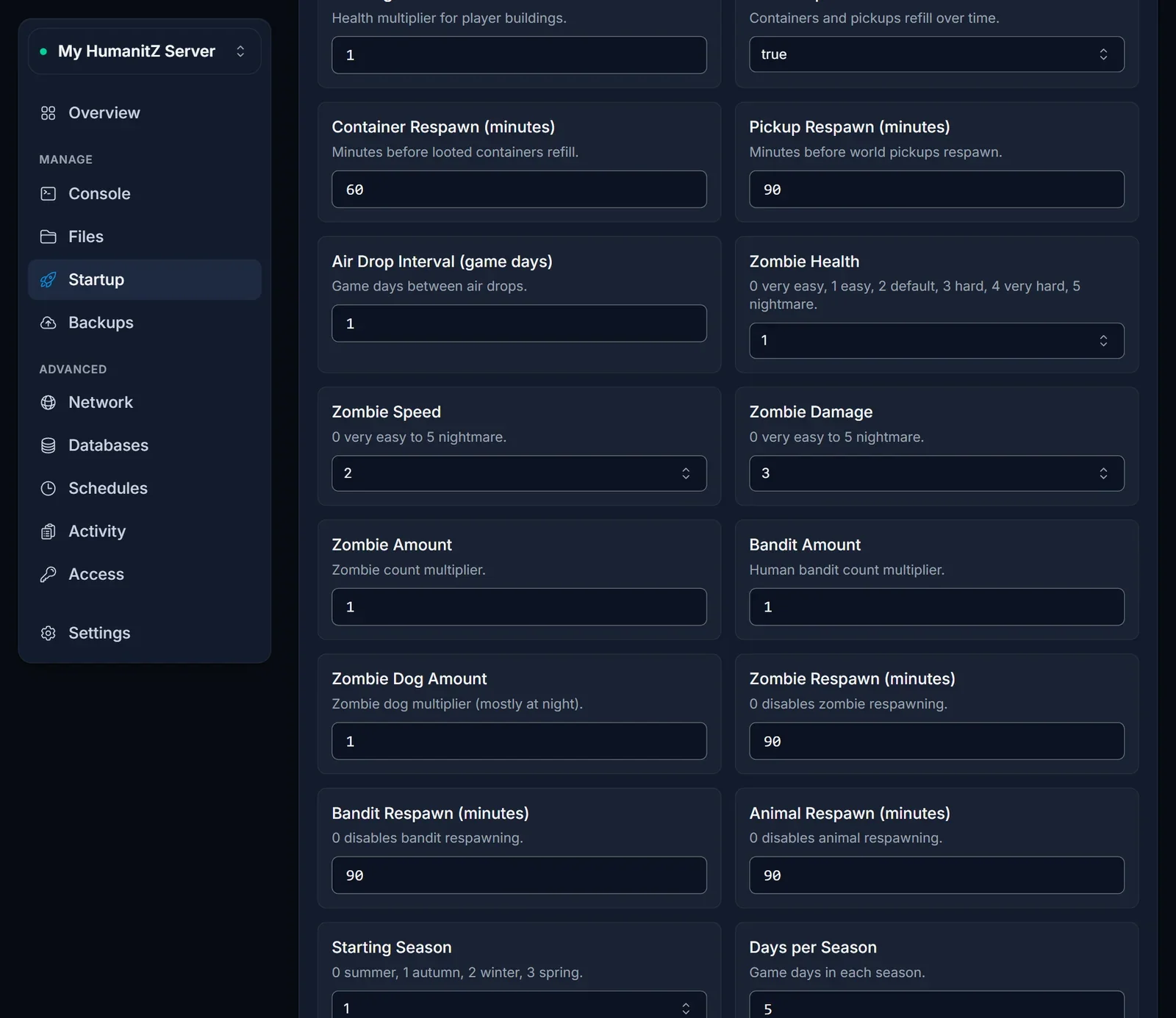
- PvP turns player damage on or off, and with it the ability to loot other players' cars and containers.
- Permadeath wipes the character when they die.
- Item Loss on Death runs from 0, where you lose nothing, up to 3, where even your worn equipment is dropped.
The undead and the living
- Zombie Health, Zombie Speed and Zombie Damage each go from 0 (very easy) to 5 (nightmare). Bandits have their own matching set.
- Zombie Amount, Bandit Amount and Zombie Dog Amount are multipliers. A value of 2 doubles the population.
- Raid Events controls how often your base is attacked, from 0 (never) to 4 (insane).
- Headshot Only means zombies only go down from a shot to the head.
Loot and survival
- The loot settings such as Food Loot, Ammo Loot and Ranged Weapon Loot run from 0 (scarce) to 4 (abundant).
- Hunger and Thirst Drain can be set to slow, normal or fast.
- XP Multiplier speeds up or slows down levelling.
Time and seasons
- Day Length and Night Length are in real minutes.
- Starting Season and Days per Season decide which season your world opens in and how long each one lasts.
- Freeze Time When Empty pauses the clock while nobody is online, so the world does not age between sessions.
Advanced options in the config file
A small number of options only exist in HumanitZServer/GameServerSettings.ini, for example RCON settings, weather probabilities and how the map is streamed in segments. To change them, stop the server, open the file in the Files tab, edit and save, then start the server again.
Do not edit values in the file that also exist on the Startup tab. The panel rewrites those from the tab on every boot, and your file change will quietly disappear.
Saves and fresh worlds
Save Name tells the server which world to load. Type a new name, restart, and you get a brand new world. Your old world is untouched, so switching back is just a matter of typing the old name again. Save names can use letters, numbers, dashes and underscores.
Worlds are stored as folders in HumanitZServer/Saved/SaveGames/SaveList/Default/, one per save name. Save Interval (seconds) sets how often the world saves, every 300 seconds by default. Before a big change, such as switching on permadeath midway through a run, take a backup from the Backups tab so you can roll back if the group hates it.
RAM and server size
HumanitZ is heavy for a survival game. An empty, newly generated world already uses roughly 5 GB of memory, so 6 GB is the smallest plan we offer for it. As players spread out and bases grow, usage climbs, so groups that fill most of the default 16 slots will be more comfortable with extra headroom. You can upgrade later from the panel and keep your world.
Restarts and updates
The server checks for and installs HumanitZ updates on every boot. After the game patches, players on the new version will not be able to join until you restart, so that is the first thing to do when people report a version error. A restart now and then is also a good habit on a long-running world.
Quick fixes
It has been on Starting for ages. On the first boot it is downloading the game. Watch the Console and wait for Session created!.
I changed a setting and nothing happened. You need a restart after any change on the Startup tab.
Players say they cannot find the server. Check the name for the word "Official" and confirm Search ID is still HumanitZ_Dedicated. Joining by address works either way.
My config file edit was undone. That setting also exists on the Startup tab, which wins on every boot. Change it there instead.
Need a hand?
Our live chat on the site is the quickest way to reach us, or open a ticket from support. New to HumanitZ hosting? Our HumanitZ server hosting page lists the plans.
