
Satisfactory hides its dedicated servers behind a menu almost nobody looks in first. The Join Game button on the main menu, the obvious one, is not how you reach your server, and using it produces an error message that sounds far more alarming than the mistake deserves. Your server is fine. You are simply knocking on the wrong menu. This guide walks through the correct route, the one-time claim every new server needs, and the errors worth recognising on sight.
What you need before you start
- Your server showing as running in the game panel
- The connection address from your server's Overview page
- Satisfactory installed on Steam or the Epic Games Store
Get your connection address
Open the game panel, select your Satisfactory server, and copy the address from the Connection address card on the Overview page. It looks like an IP followed by a port, usually 7777.
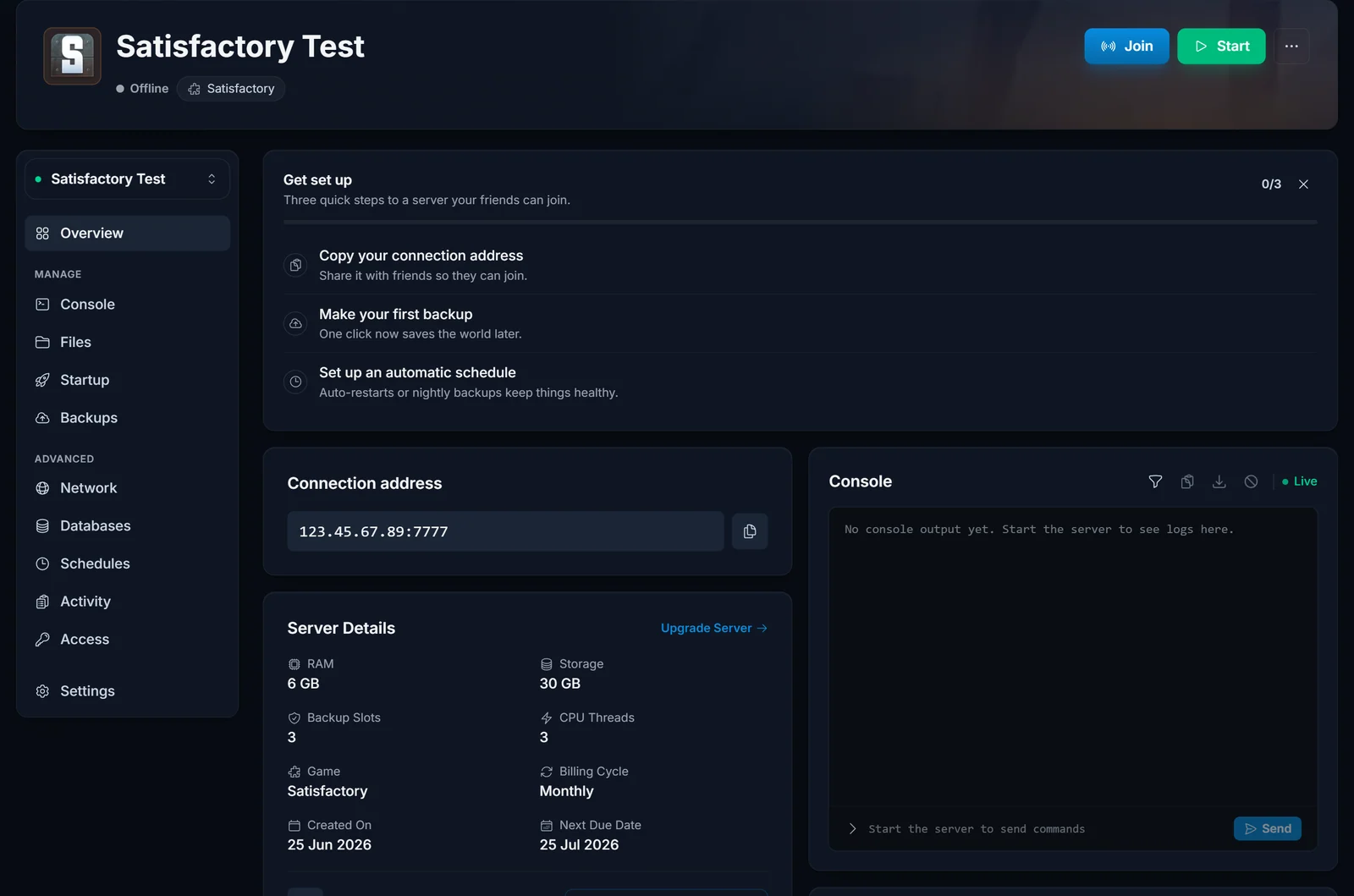
Unlike a lot of games, Satisfactory uses this one address for everything. There is no separate query port to hunt down and no second number to get wrong.
Use Server Manager, not Join Game
This is the whole article in one line, so it is worth being blunt about it.
Join Game on the main menu is for joining a session hosted by a friend playing the game. It is not for dedicated servers. Paste your server address there and Satisfactory fails with:
Encryption token missing
That message reads like a security problem or a broken server. It is neither. It means you used the wrong entry point, and the game has no idea what to do with a dedicated server address handed to it that way.
Dedicated servers live in Server Manager instead:
- From the main menu, choose Server Manager
- Choose Add Server
- Paste your connection address, including the port
- Give it a label you will recognise, then confirm
The server appears in your list on the left. If it shows as offline, check the panel and start it.
Claim the server, once
A brand new Satisfactory server belongs to nobody. The first person to connect claims it, and until that happens there is nothing to join.
After adding the server, Satisfactory prompts you through it:
- Name the server. This is the label other players see.
- Set an admin password. This is what grants server administration from inside the game, so keep it somewhere you will find it again.
- Create a session, or upload an existing save.
Creating a session is where you pick your starting location and any advanced game settings, exactly as you would starting a new solo game. Once the session is running, the Join button becomes available and you drop into the world.
Only one person needs to do this. Everyone else just adds the address and joins.
How your friends join
They do not claim anything and they do not need the admin password.
- Main menu, then Server Manager
- Add Server
- Paste the same address you used
- Select the server and choose Join
Send them the address exactly as it appears in the panel. The most common friction here is somebody typing it from a screenshot and dropping a digit.
Steam and Epic together
Satisfactory dedicated servers accept both storefronts. A Steam player and an Epic player can build on the same server with no extra configuration, no separate address, and nothing to enable in the panel. Everyone follows the same Server Manager route above.
Troubleshooting
Encryption token missing. You used Join Game. Go back and add the server under Server Manager instead. This is by far the most common cause of a "broken" Satisfactory server.
The server shows offline in Server Manager. Check the panel first. If it is running there but offline in game, confirm you included the port in the address and that you typed it exactly.
Server is not responding. Usually a server still starting up. Satisfactory takes a while on first boot while it writes out its initial files, so give it a couple of minutes and check the Console tab in the panel for progress.
Someone else already claimed my server. Claiming is first come, first served, and it happens the moment someone connects. If you shared the address before claiming it yourself, whoever got there first holds the admin password. Reinstall the server from the panel to reset it, then claim it before sharing.
I forgot the admin password. It lives on the server, not in your account, so we cannot read it back for you. Reinstalling gives you a clean claim, and your saves can be downloaded beforehand from the Files tab.
My friends see a different version and cannot connect. Someone is on a different game branch. Satisfactory's experimental and stable branches are not compatible, and the server runs one of them. Match your game branch in Steam or Epic to the server's.
The session list is empty after claiming. You claimed the server but never created a session. Open Server Manager, select the server, and create one, or upload a save.
Frequently asked questions
Do I need to own Satisfactory to run the server? The server itself runs on our hardware and needs no licence from you. You need the game to play, naturally.
Where do my saves live? On the server, and you can download them from the Files tab in the panel at any time. Uploading a solo save is how most people move an existing factory across.
Can I upload a save from single player? Yes. That is one of the options during the claim flow, and you can also upload later from Server Manager once you are an admin.
What is the difference between the admin password and a server password? The admin password controls the server settings from inside the game. A server password, which is optional and set separately, is what players need in order to join at all. Most people set the first and skip the second.
Does the server keep running when I log off? Yes. That is the point of a dedicated server. The factory keeps running whether or not anyone is connected.
Can I change the starting location later? No. The starting area is chosen when the session is created and is baked into that save. Create a new session if you want a different one.
Still getting bounced at the menu? Contact support with your server name and the exact error text and we will take a look. Not running a server yet? See our Satisfactory server hosting plans.
