
Valheim 1.0 changed the shape of a saved world, and it changed how you move one onto a server. A world used to be two files sitting next to each other. Since 1.0 it is a folder with a handful of files inside, and the panel has an upload button for each form. This guide covers both, so it works whether your map was rolled last night or has been going since early access.
What you need before you start
- The world you want to move, saved on your PC or downloaded from a previous host
- Access to your server in the game panel
- About five minutes, or longer if the world is old and large
The two shapes a Valheim world comes in
Open your worlds folder and you will see one of these.
Valheim 1.0 and later: a folder per world. A world called Midgard is a folder named Midgard, and inside it sit files like _main.3.fwl2, _main.3.db2, _main.3.chunks and _main.3.ok, plus a pile of .chunk files holding terrain. The number climbs every time the game saves, so a world you have played for a while holds several generations at once. The .fwl2 is the world's identity, meaning its seed, its name and your boss progress. The .db2 and the .chunk files are everything you built, dug and dropped.
Before 1.0: a pair of files. Midgard.fwl and Midgard.db, sharing one name. The .fwl is the identity, the .db is the world. They belong together. A .fwl on its own gives you an empty map on the right seed, and a .db on its own will not load.
You will also see folders or files with _backup_ in the name. Those are Valheim's own rolling backups. Leave them alone. They are useful if something goes wrong, and the panel refuses to accept one as a world on purpose.
Where to find them on your PC
Press Windows + R, paste this and press Enter:
%USERPROFILE%\AppData\LocalLow\IronGate\Valheim\worlds_local
Your server uses the same layout in its own copy of that folder, which is why moving a world across is mostly a file transfer.
If the folder is empty, check the older location some installs still use:
%USERPROFILE%\AppData\LocalLow\IronGate\Valheim\worlds
Playing with cloud saves? Load the world once from the main menu, quit to desktop, then look again. Valheim writes the world to disk when it unloads, so a world that lived only in the cloud appears locally after one session.
Stop the server if you are replacing the active world
If the world you are uploading has the same name as the one your server is currently running, stop the server first. Valheim keeps the running world in memory and writes it out as it saves, so an upload that lands underneath a live world gets overwritten minutes later. The panel warns you when it spots this, but it is easier to stop first.
Uploading a world under a new name while the server runs is fine. Nothing touches the active map until you switch to it.
Upload it from the Worlds tab
Open your server in the game panel and select Worlds in the sidebar, under the Valheim heading. The tab lists every world on the server with its seed, its size and when it last saved, and the active one carries a green badge.
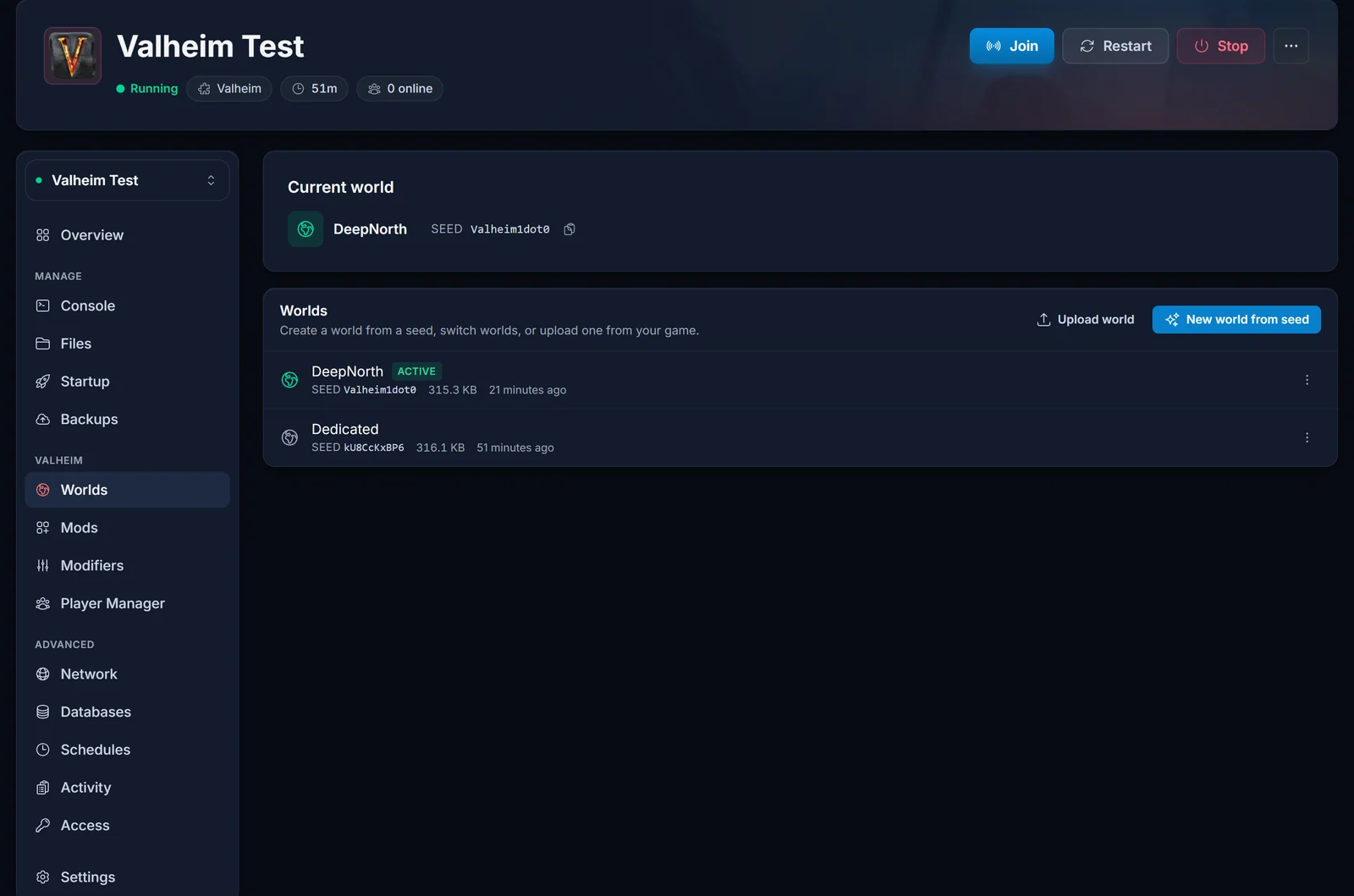
The buttons at the top right of the list are where the upload starts.
A 1.0 world: Upload world folder
- Click Upload world folder
- Pick the world's own folder, the one named after the world. Not
worlds_local, and not the files inside it - Your browser asks for permission to upload the folder's contents. Accept it
- The panel reads the folder and shows you what it found: the world name, which save it picked, how many terrain files are coming and the total size
- Click Upload world and leave the page open until it finishes
That summary step matters. A played world holds several saves and its own backups, and sending all of it would be slow and would hand your server stale copies. The panel picks the newest finished save, takes the terrain that goes with it, and ignores everything else. If the number it shows is not the save you expected, close the dialog rather than guessing.
A pre-1.0 world: Upload world
- Click Upload world
- Select the
.fwlfile and its matching.dbfile together - Check the summary and click Upload world
Selecting only the .fwl is allowed, and the panel tells you what will happen: the server keeps the seed and generates fresh terrain, so your buildings do not come with it. That is occasionally what people want, and almost never what they meant to do.
Make it active and restart
An uploaded world joins the list. It does not take over on its own.
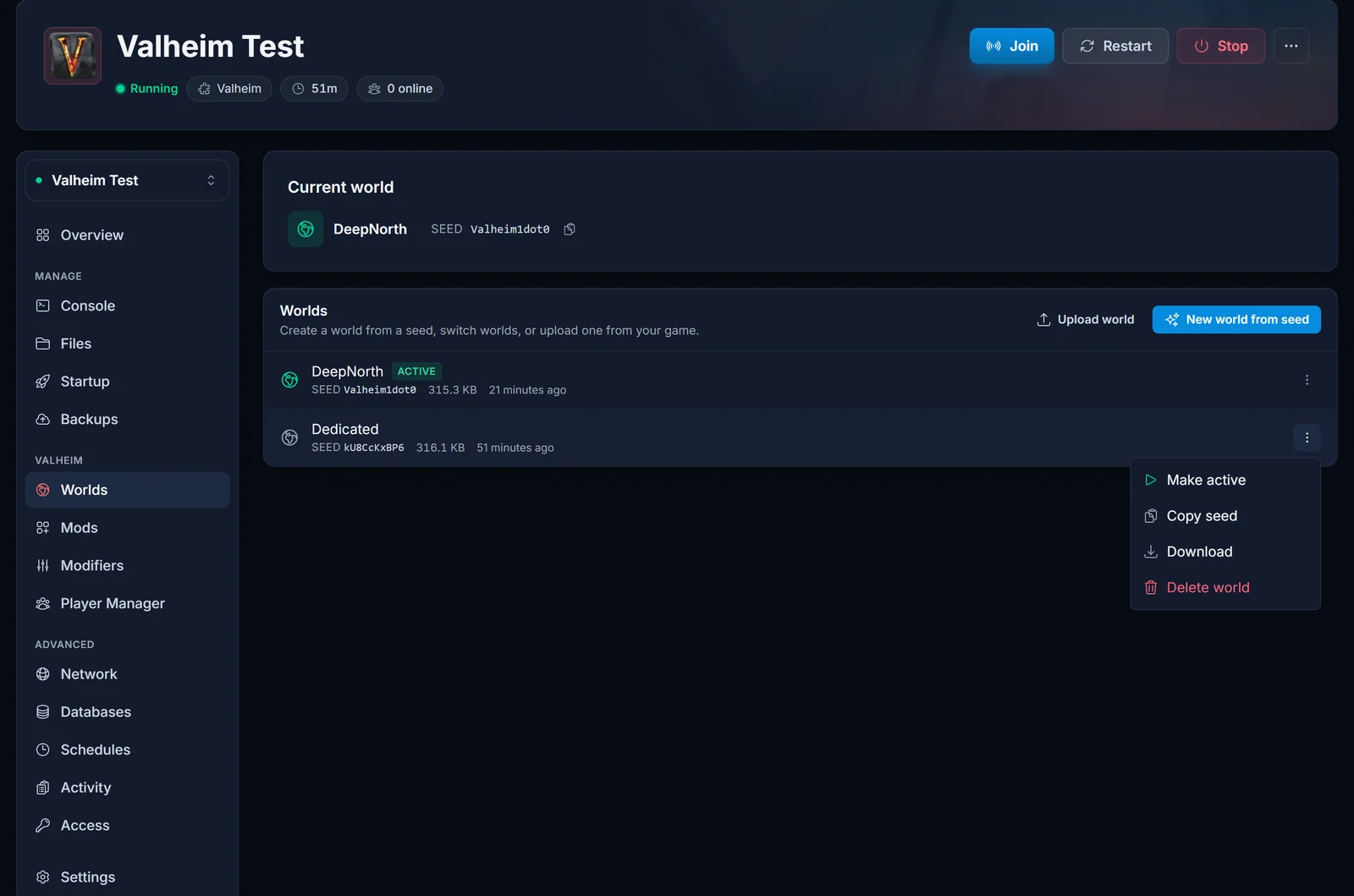
- Open the menu at the right of the world's row
- Choose Make active
- Restart when the panel asks
The switch only applies on restart, and a restart gives Valheim a new join code. If your group swaps worlds often, share the server address instead of the code. Both are on the same connection card.
Watch the Console tab as the server comes back up. A world that loaded correctly names itself in the log within a few seconds of the boot.
The manual route, if you prefer it
The Worlds tab is the short path, but the files are not hidden from you. On the server they live here:
/.config/unity3d/IronGate/Valheim/worlds_local/
Open the Files tab, navigate there, and drop the world folder or the file pair in. Then open the Startup tab and set World Name to the world's name, with no extension and no folder suffix.
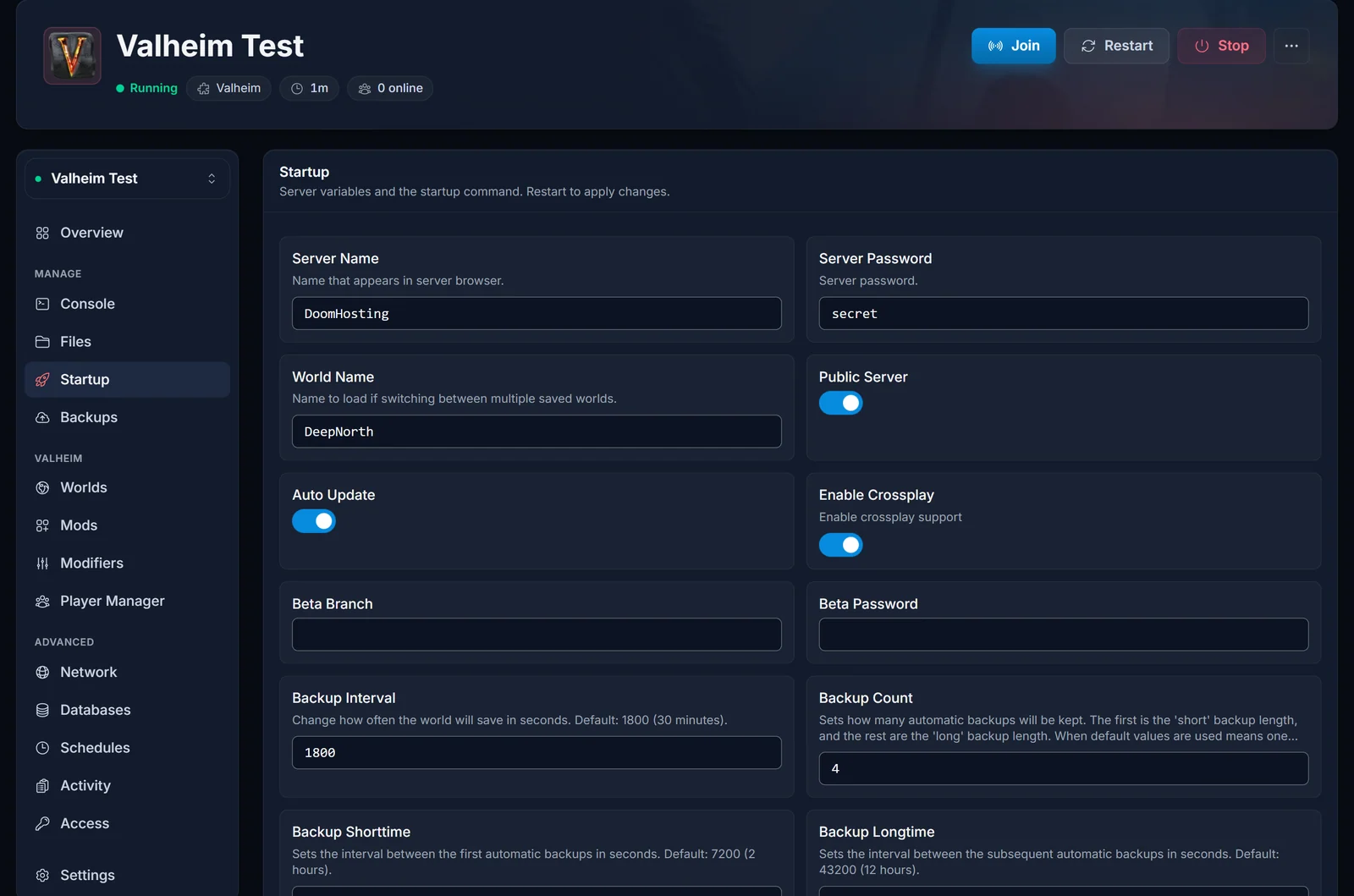
Spelling and capitals have to match. Midgard and midgard are two different worlds as far as the server is concerned, and asking for one that does not exist is exactly how you end up looking at a freshly generated coastline.
For a large world, SFTP is more reliable than the browser uploader and resumes better on a poor connection. Same folder, same rules.
What happens to an old world on a 1.0 server
Nothing dramatic, and nothing you have to do by hand. A 1.0 server loads a pre-1.0 .fwl and .db pair as they are. The first time it saves, it writes the world out in the new folder form and renames your old flat file to a _backup_ copy beside it. From then on the world is a 1.0 world and behaves like one.
Two things follow from that. Your first save after the migration can be up to half an hour away, because Valheim saves on an interval rather than on demand. And if a world folder and an old file pair ever share a name on the same server, the folder wins and the loose files are ignored.
What comes with the world and what does not
Your Viking is not in the world file. Characters live on the machine you play from, so your skills, inventory and gear follow you onto the server the first time you join. There is nothing to upload.
The world carries the map, your terrain edits, every structure and chest with its contents, boss progress and any wards you placed. Wards stay keyed to the player who set them, so they keep working for you and keep locking everyone else out until you open them.
Troubleshooting
"Those are the files of a Valheim 1.0 world." You used Upload world on the contents of a world folder. Use Upload world folder and pick the folder itself.
"No Valheim 1.0 world in that folder." The folder you picked holds no _main files. You probably selected worlds_local or a parent folder instead of the world's own folder.
"That is one of Valheim's automatic backups." The name contains _backup_. Pick the world itself. If the backup is genuinely the copy you want, rename it to a clean world name first.
"That folder holds more than one world." Upload one world at a time.
The name is rejected. World names take letters, digits, spaces, underscores and hyphens, up to 20 characters, with no space at either end. Rename the folder or the files before uploading.
The server generated a new world instead of loading mine. The active world does not match what is on the server. Check the Current world card at the top of the Worlds tab, and make sure you restarted after switching.
The world loads but my base is gone. You uploaded the identity without the terrain, or you uploaded a backup. Check the size in the list. A played world is far bigger than a fresh one.
My upload keeps getting reverted. The server was running on that world. Stop it, upload again, then start it.
The upload fails or stalls near the end. Use SFTP instead. Long-running worlds pass a few hundred megabytes without much trouble.
The server starts, then crashes. The world was built with mods the server is not running. Install the matching ones with our Valheim mods guide and try again.
Frequently asked questions
Does uploading a world delete the one already on my server? Only if the two share a name, and the panel warns you before that happens. Different names sit side by side and you switch between them from the Worlds tab. Take a copy of the current world first anyway, using Download in its row menu.
My friend is on 1.0 but their world is still two files. Which do I upload? Whichever form you actually have. Both work. A pre-1.0 pair converts itself on the server's first save.
Can I move a server world back to single player?
Yes. Use Download on the world, unpack it into your local worlds_local folder, and it appears in your world list at the next launch.
Can I upload a world from Xbox, PlayStation or Switch? No. Those saves are sandboxed by the platform and cannot be exported as files.
Does the seed change when I upload? No. The seed is stored inside the world's own metadata, so it travels with it. The Worlds tab shows it next to every world, and Copy seed puts it on your clipboard.
Can several worlds live on one server? Yes, as many as you have space for. Only the active world is loaded and saved, and switching is a restart.
The upload worked but the world shows no size. A world that has never been saved on this server shows as not generated until the server's first autosave, which can be up to 30 minutes after the start. That is normal for a world you created from a seed, and not what you should see after uploading a played one.
Stuck on a step, or the world still refuses to load? Contact our support team with your server name and the world name, and we will take a look. Not running a server yet? Start one on our Valheim server hosting plans.
